Organic Online Shop
Theme Documentation
- By drakearthur
- support: Organic Online Shop
What is the installation process for the templates?
There is not much to the process of installing a template.
Step 1 These steps will walk you through installing a theme using WordPress Administrator.
Start by going to your WordPress admin panel.
Open "Appearance" to change your theme's settings. ===> then choose "Themes"
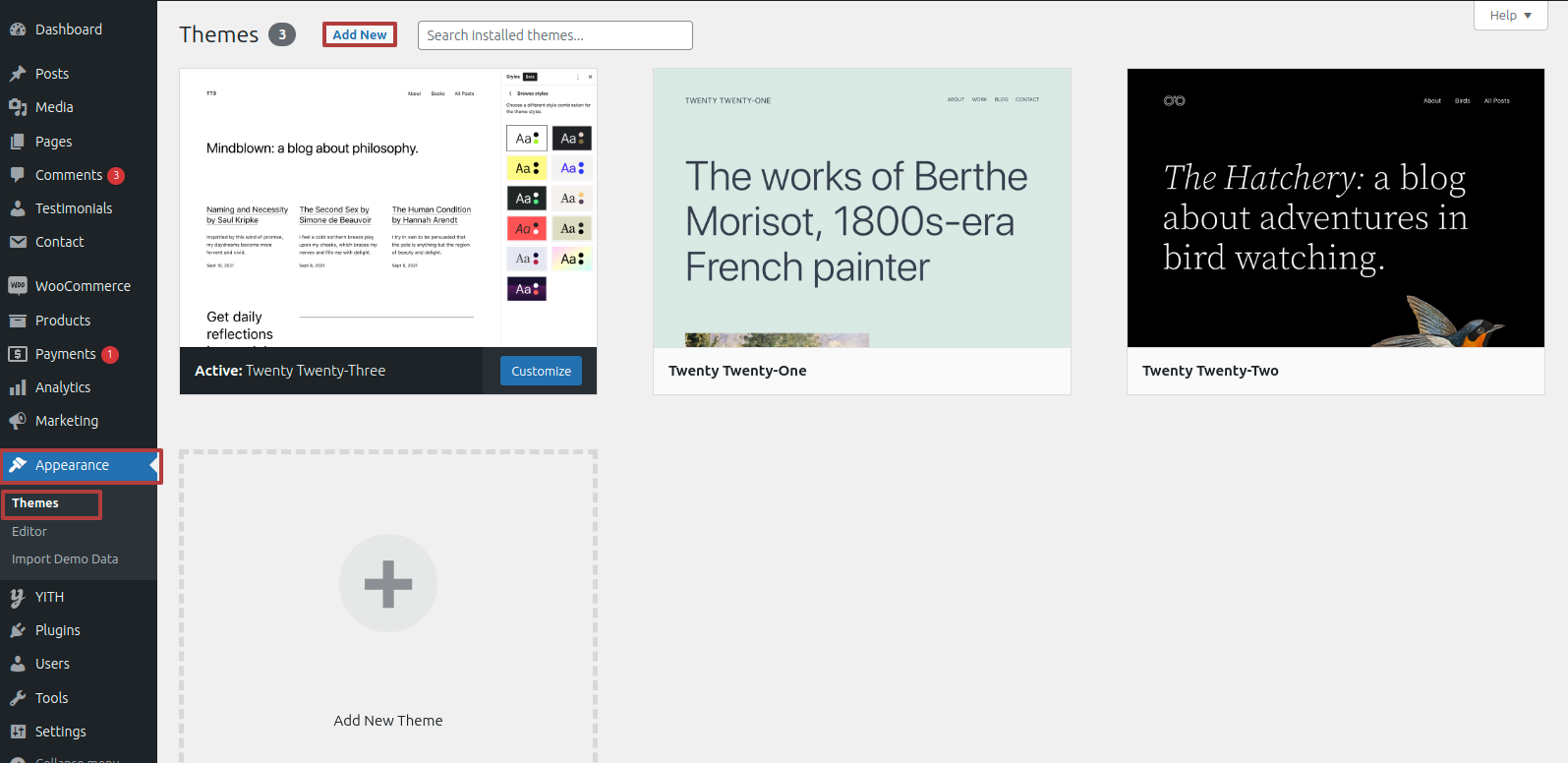
Step 2 After arriving at the themes page,choose"Add New" from the drop-down menu
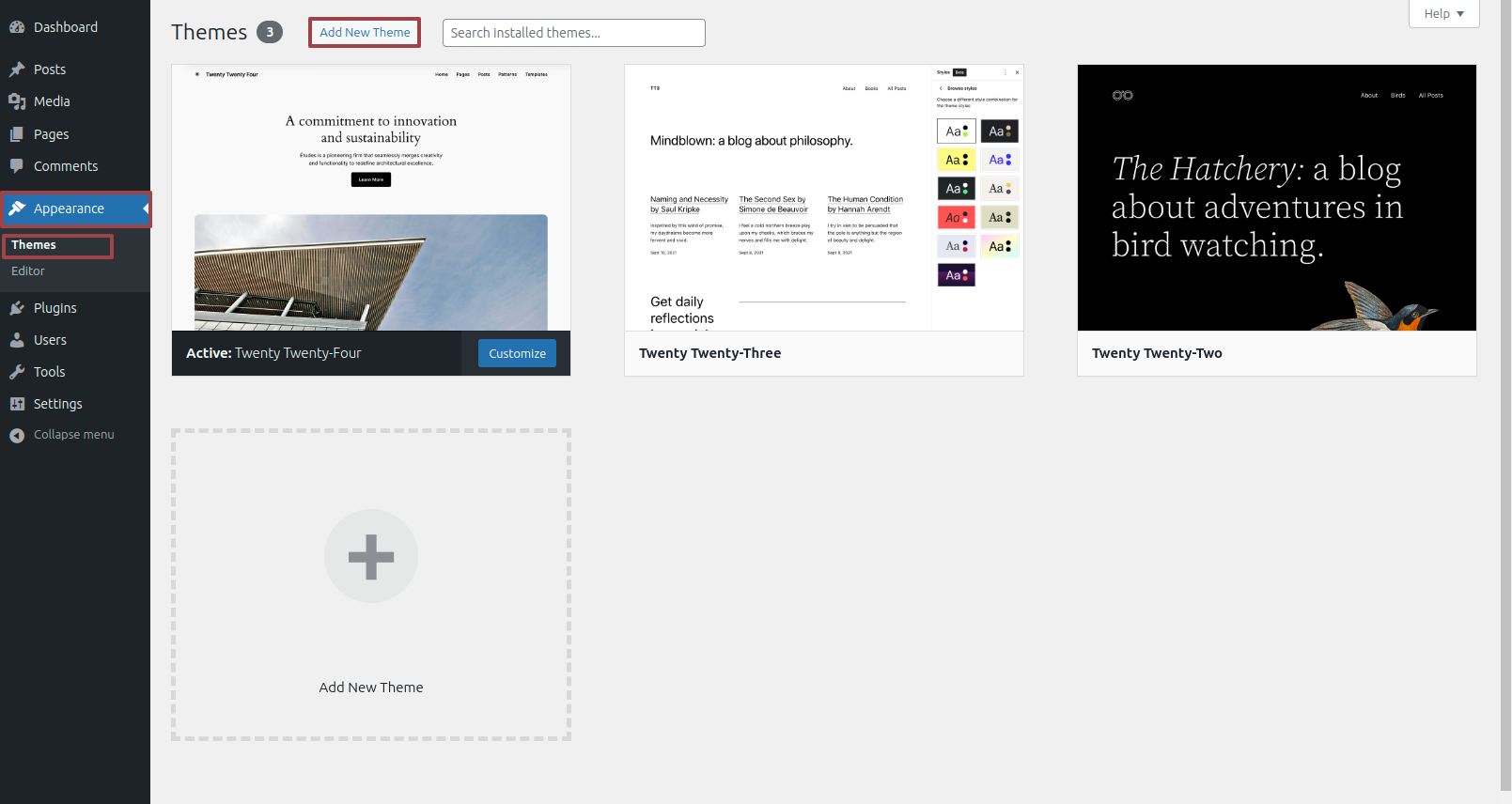
Step 3 It is important to click the "Upload Theme" button.
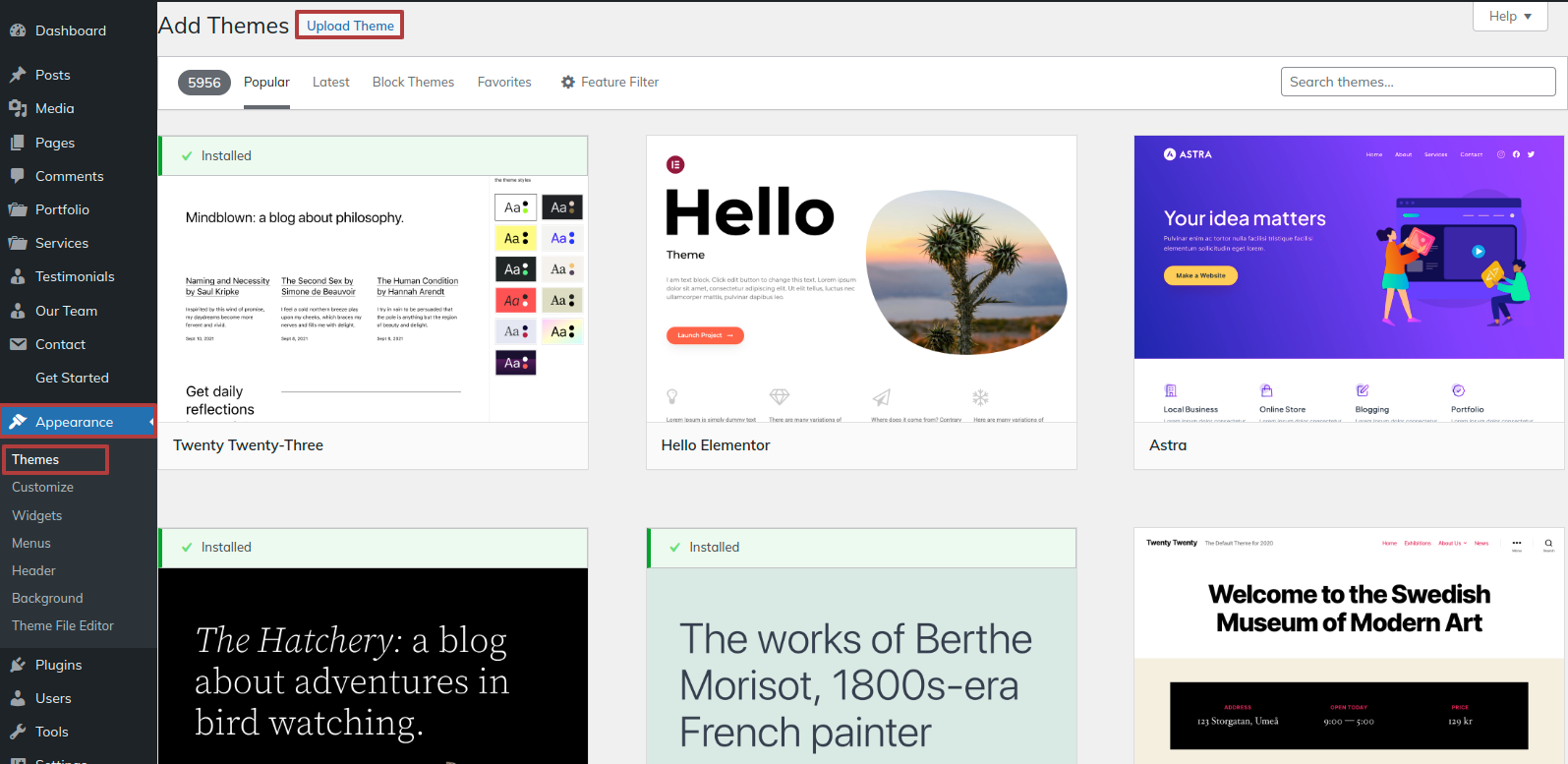
Step 4 Once you've selected your favourite organic-online-shop.zip theme, click the Browse and Now Installing buttons.
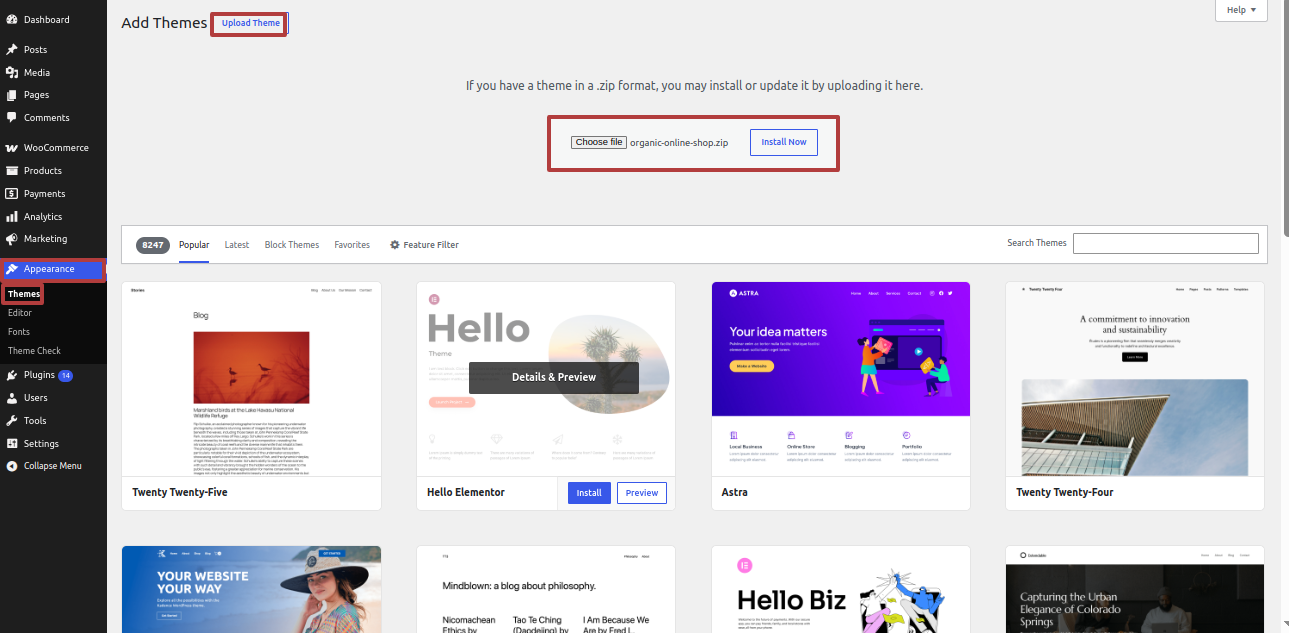
WordPress will now install the preferred theme and provide you a success message along with a preview of the theme that you may activate.
Part on Formulating the Best Edit Site
In reference to the Edit Site Configuration.
Step 1 Open "Dashbord" to change the theme ===> By selecting "Appearance" ===> Go now to the "Editor"
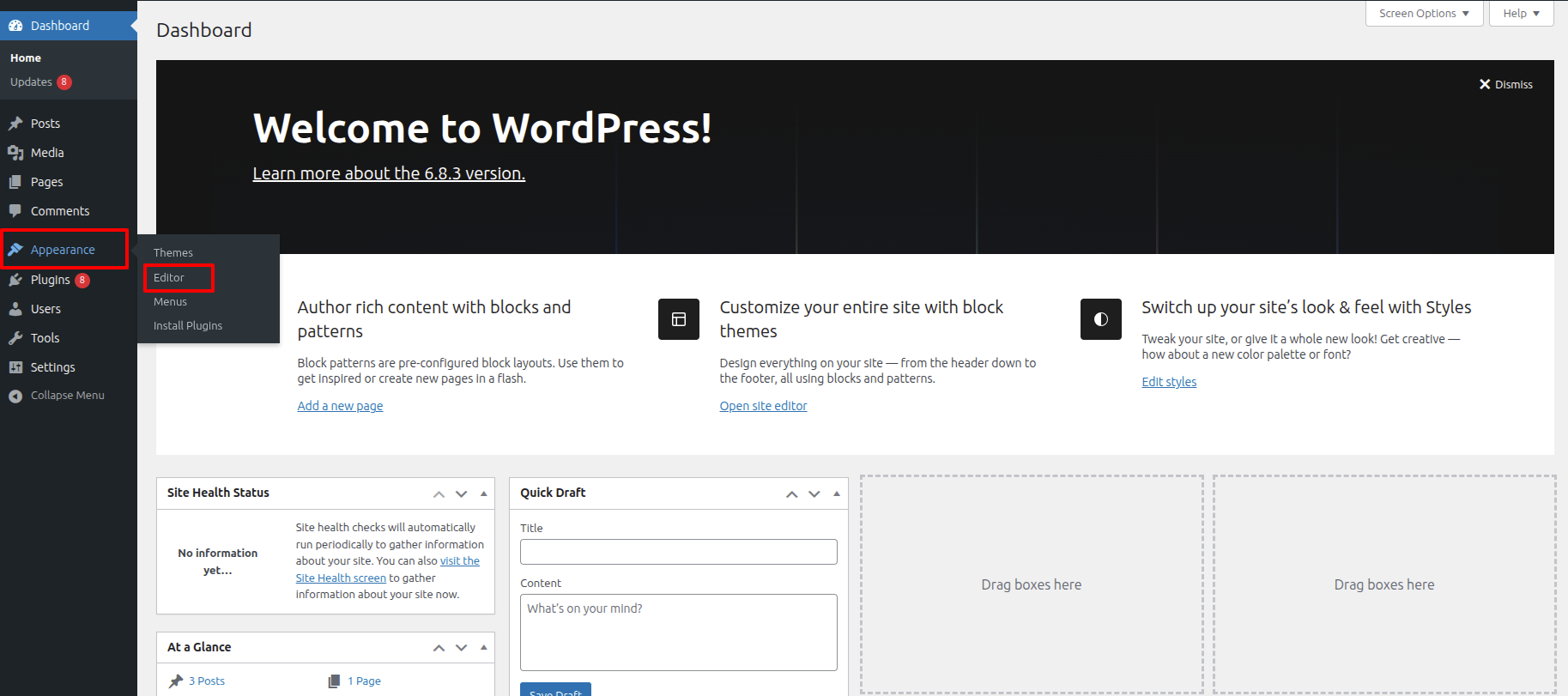
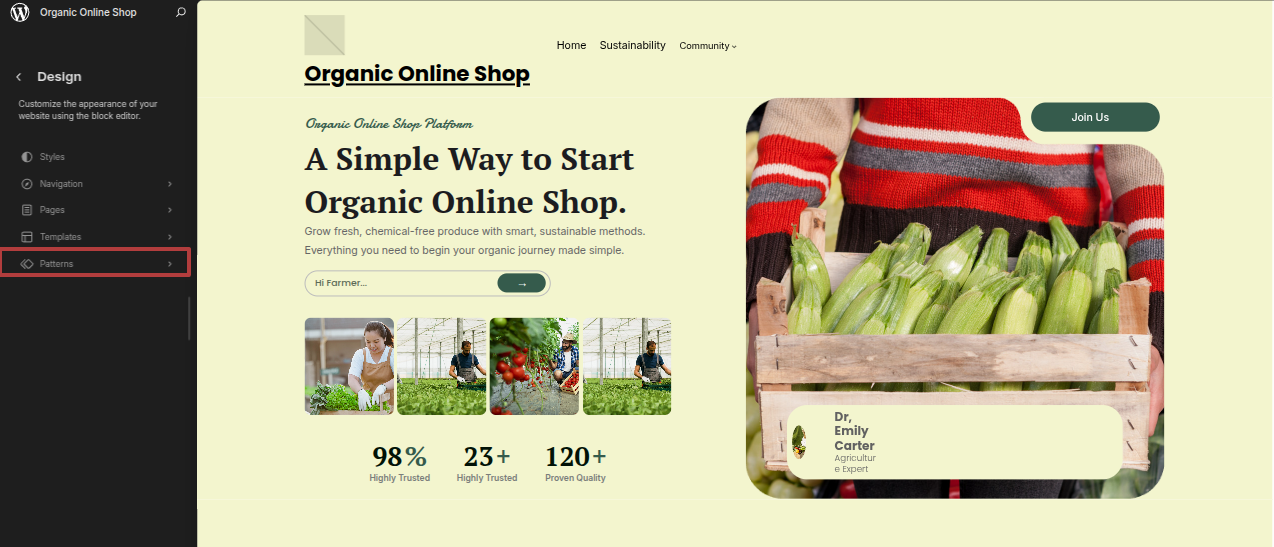
After clicking on the Editor, you will reach the Design than click on the Pattern.
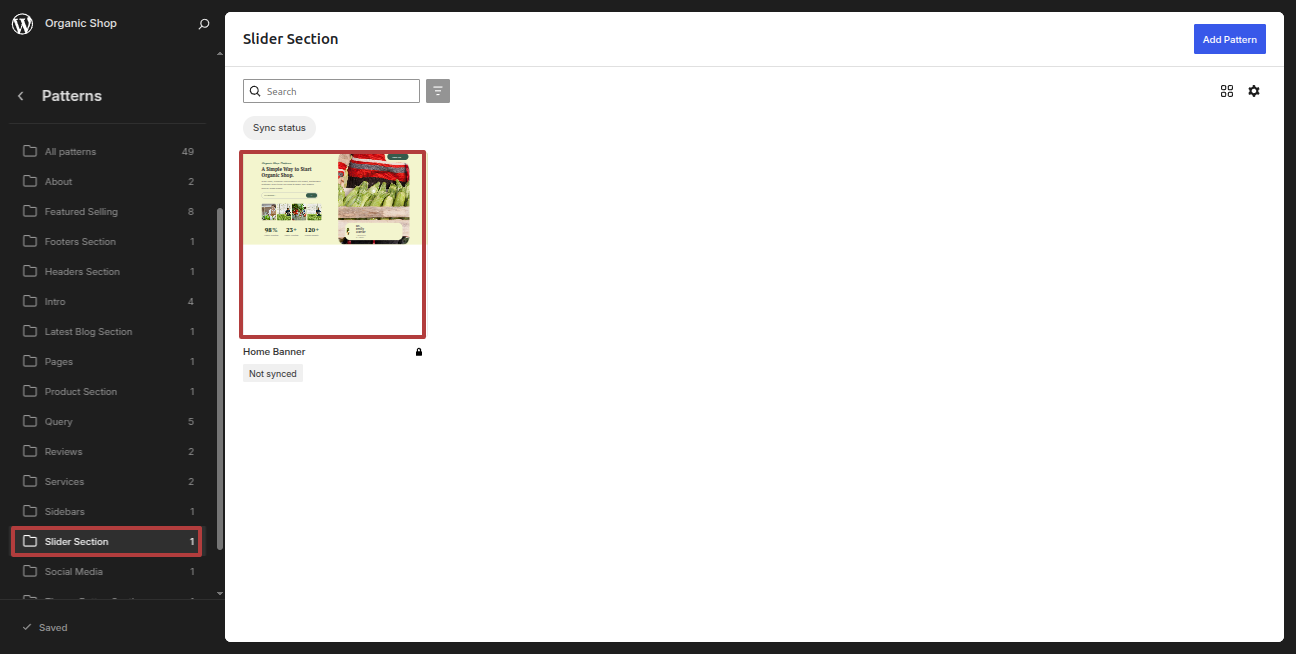
In the pattern, you will find Header, Footer, Banner, you will find every section, you can select it with one click.
In what way may I set up Navigation?
Section Concerning the Creation of the Navigation
Step 1 Open "Dashbord" to change the theme ===> By selecting "Appearance" ===> Go now to the "Editor."
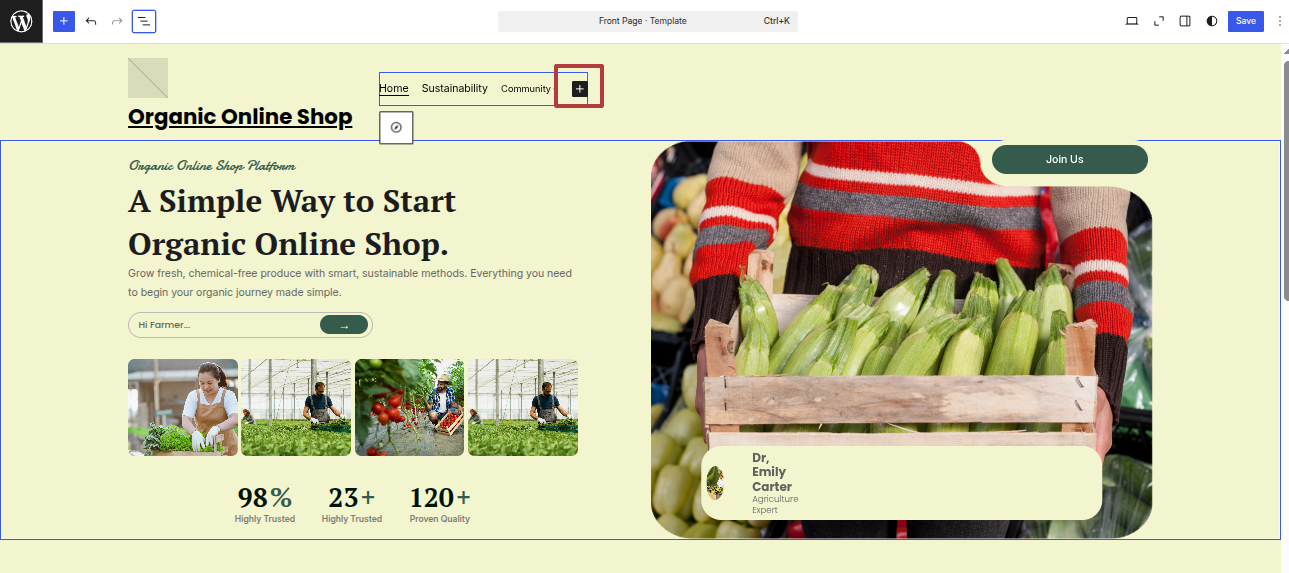
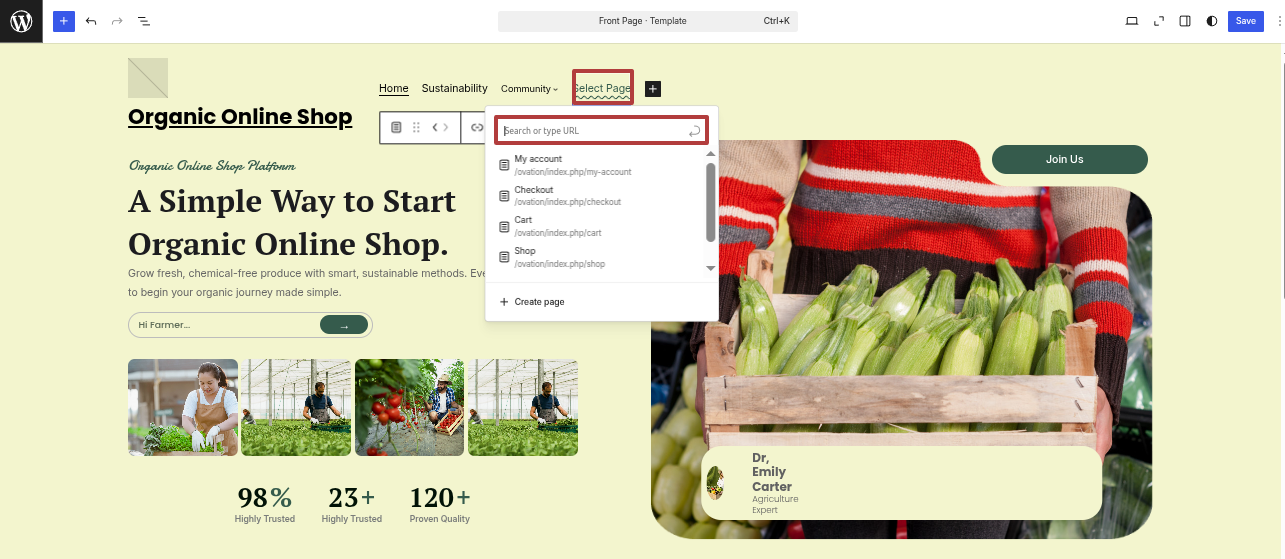
Part Regarding Creating the Site Identity
Including the header with the logo.
Step 1 Open "Dashbord" to change the theme ===> By selecting "Appearance" ===> Go now to the "Editor"
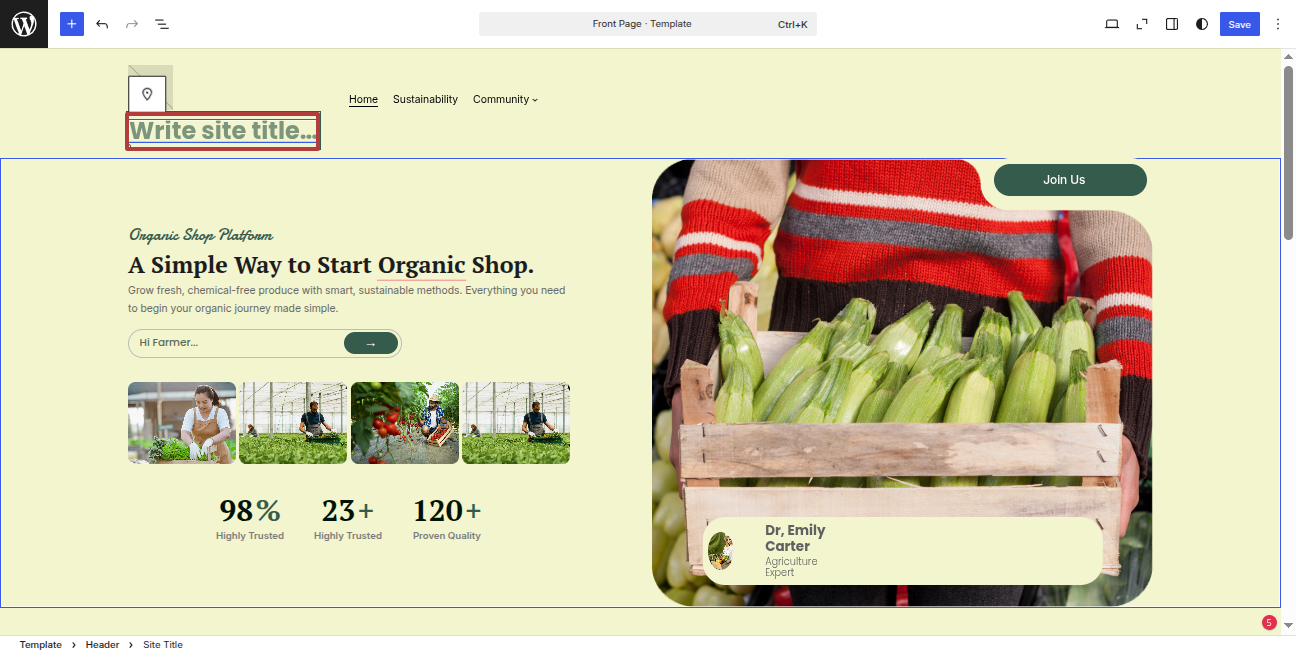
It will be shown in this format in the Header Section.

Part on Formulating the Best Header
In reference to the Header Configuration.
Step 1 Open "Dashbord" to change the theme ===> By selecting "Appearance" ===> Go now to the "Editor"
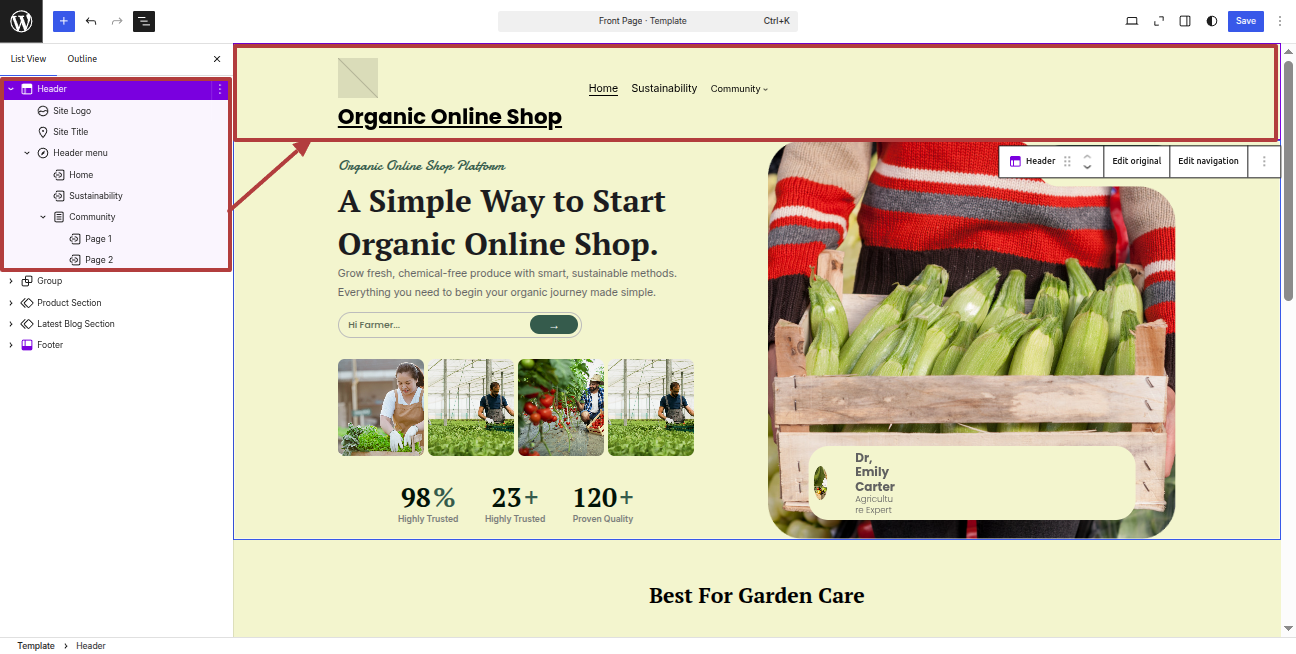
It will be shown in this format in the Header Section.

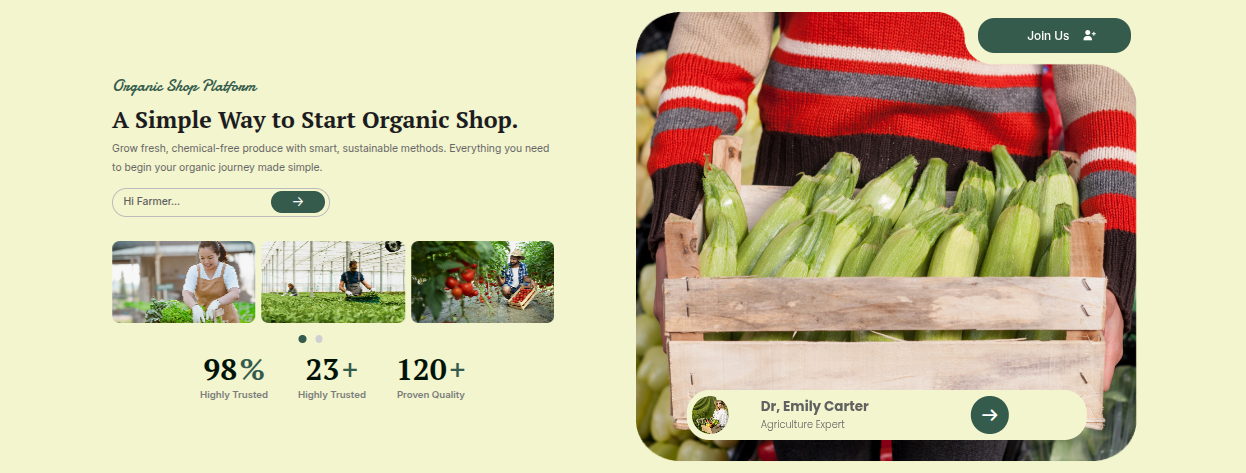
Part Regarding The Banner Development
In reference to the Banner Configuration.
Step 1 Open "Dashbord" to change the theme ===> By selecting "Appearance" ===> Go now to the "Editor."
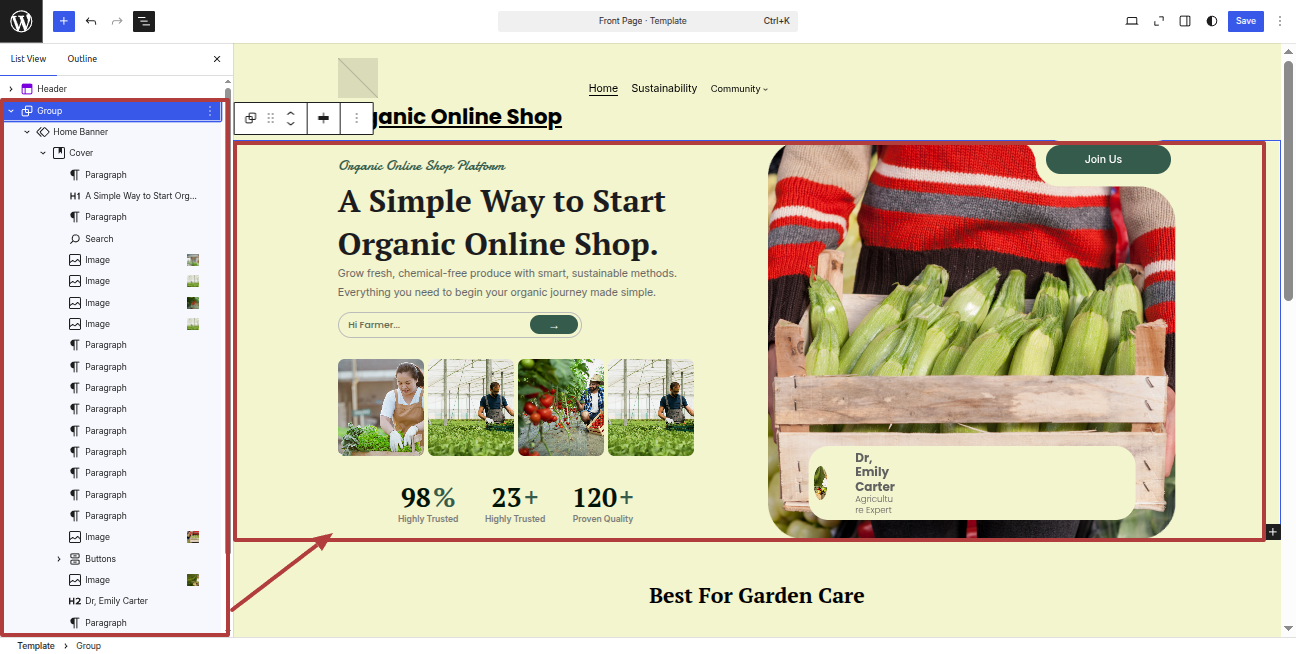
It will be shown in this format in the Banner Section.
Part Regarding The Best For Garden Care Development
In reference to the Best For Garden Care Configuration.
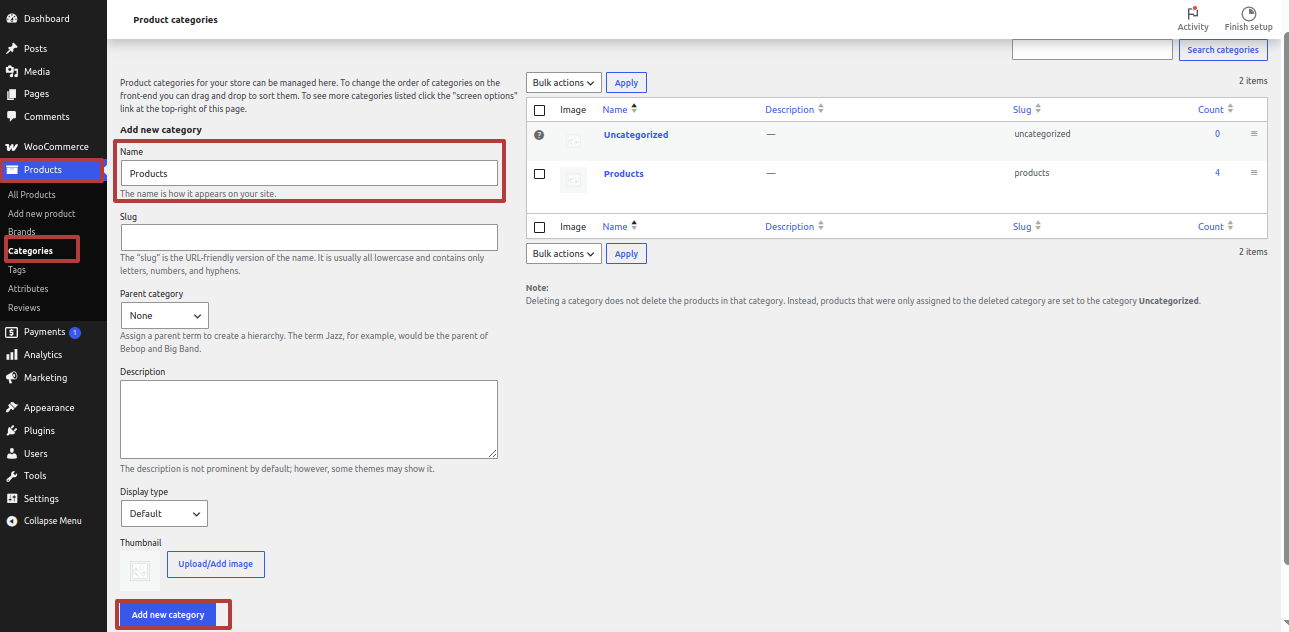
Step 1 Open "Dashbord" to change the theme ===> By selecting "Products" ===> Go now to the "Categories."
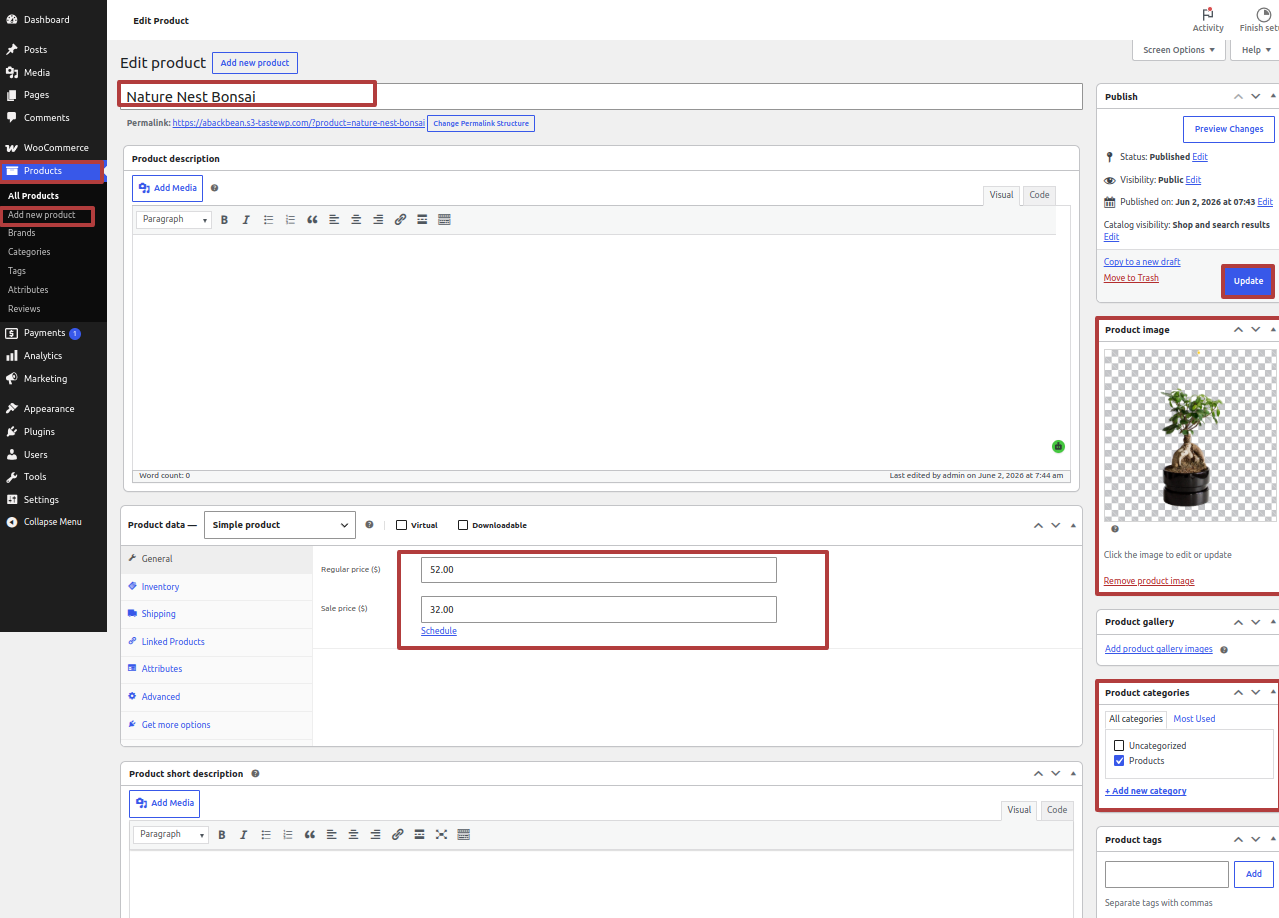
Step 2 Open "Dashbord" to change the theme ===> By selecting "Products" ===> Go now to the "Add New Products."
Step 3 Open "Dashbord" to change the theme ===> By selecting "Appearance" ===> Go now to the "Editor"
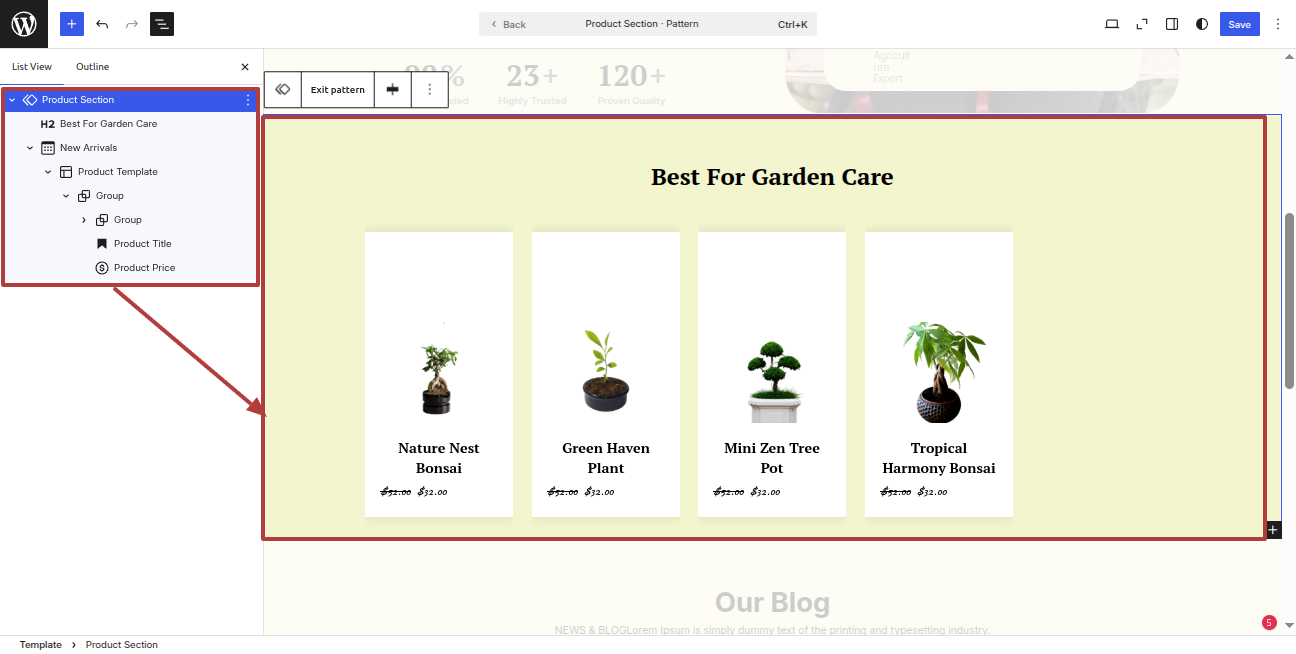
It will be shown in this format in the Best For Garden Care Section.
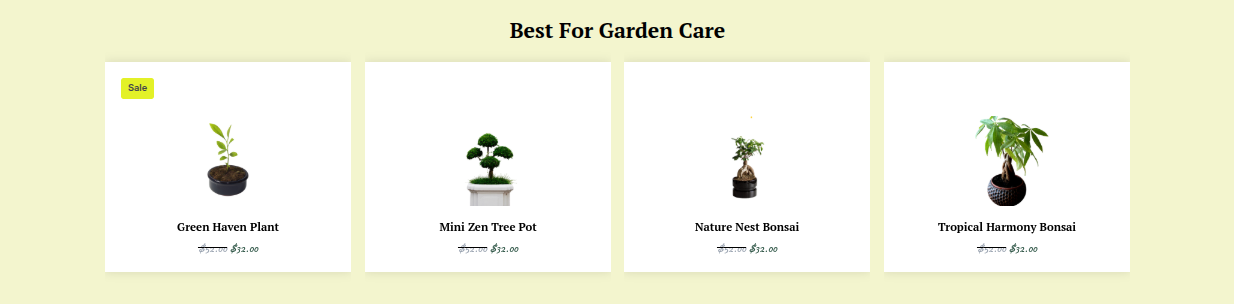
Part Regarding The Our Blog Development
In reference to the Our Blog Configuration.
Step 1 Open "Dashbord" to change the theme ===> By selecting "Posts" ===> Go now to the "Add New Posts."
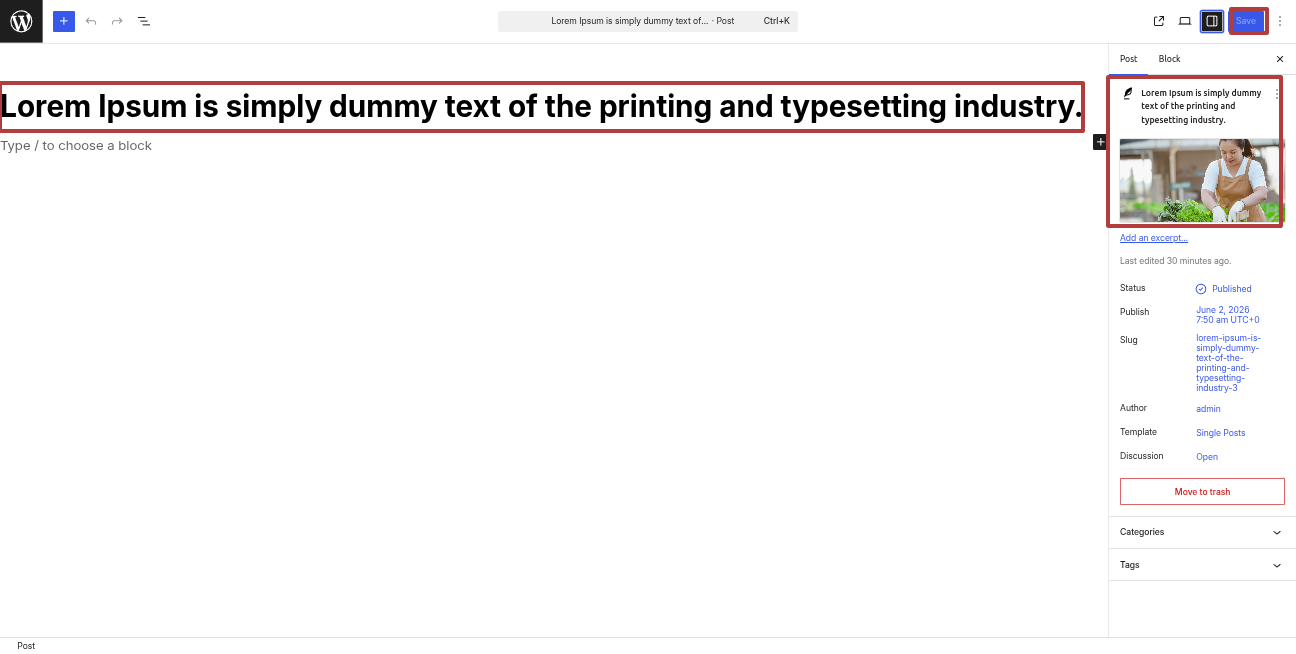
Step 2 Open "Dashbord" to change the theme ===> By selecting "Appearance" ===> Go now to the "Editor"
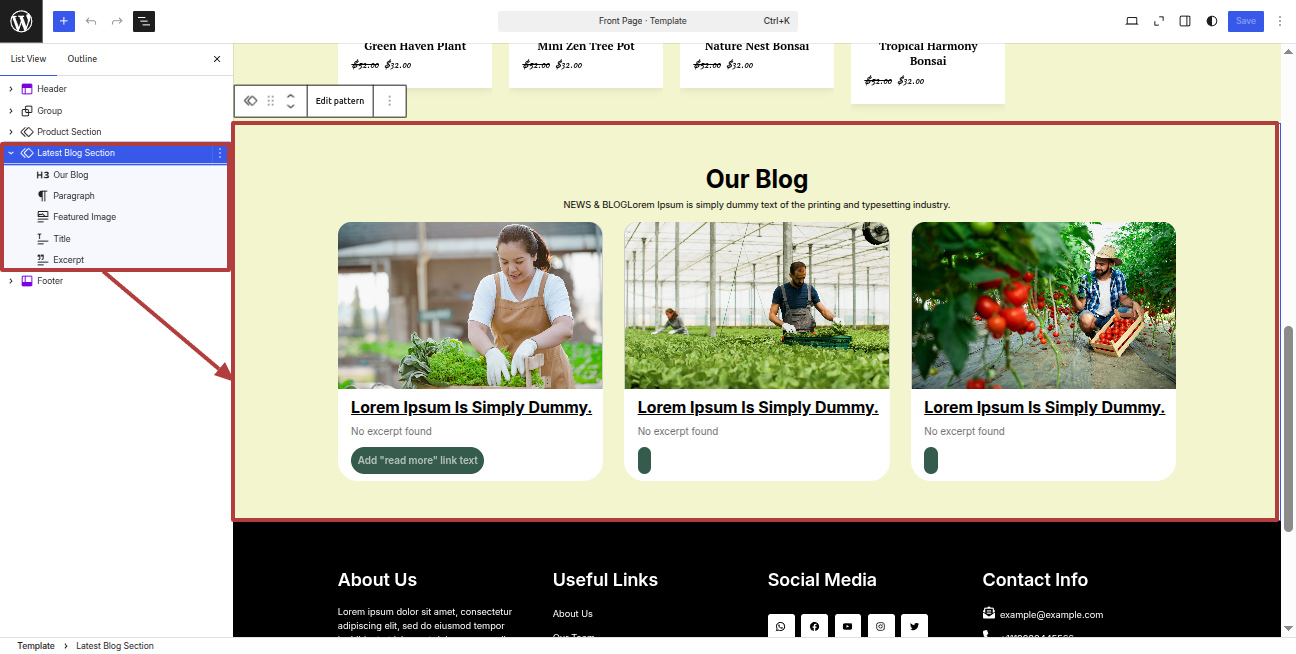
It will be shown in this format in the Our Blog Section.
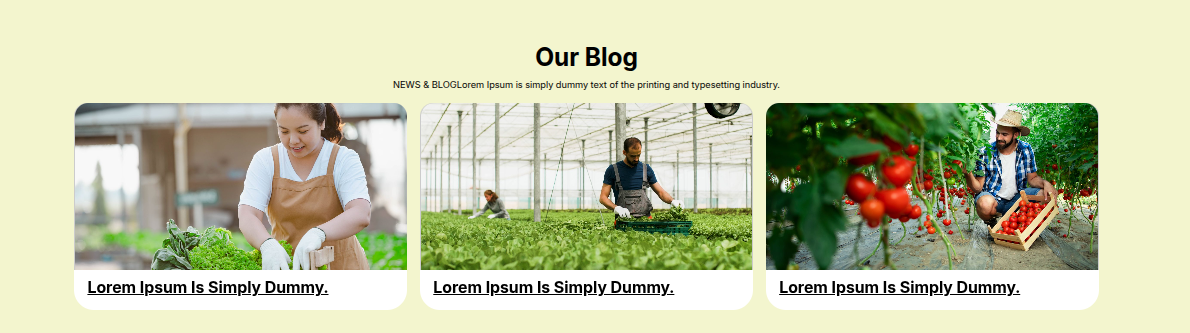
Part Regarding The Footer Bottom Development
In reference to the Footer Bottom Configuration.
Step 1 Open "Dashbord" to change the theme ===> By selecting "Appearance" ===> Go now to the "Editor".
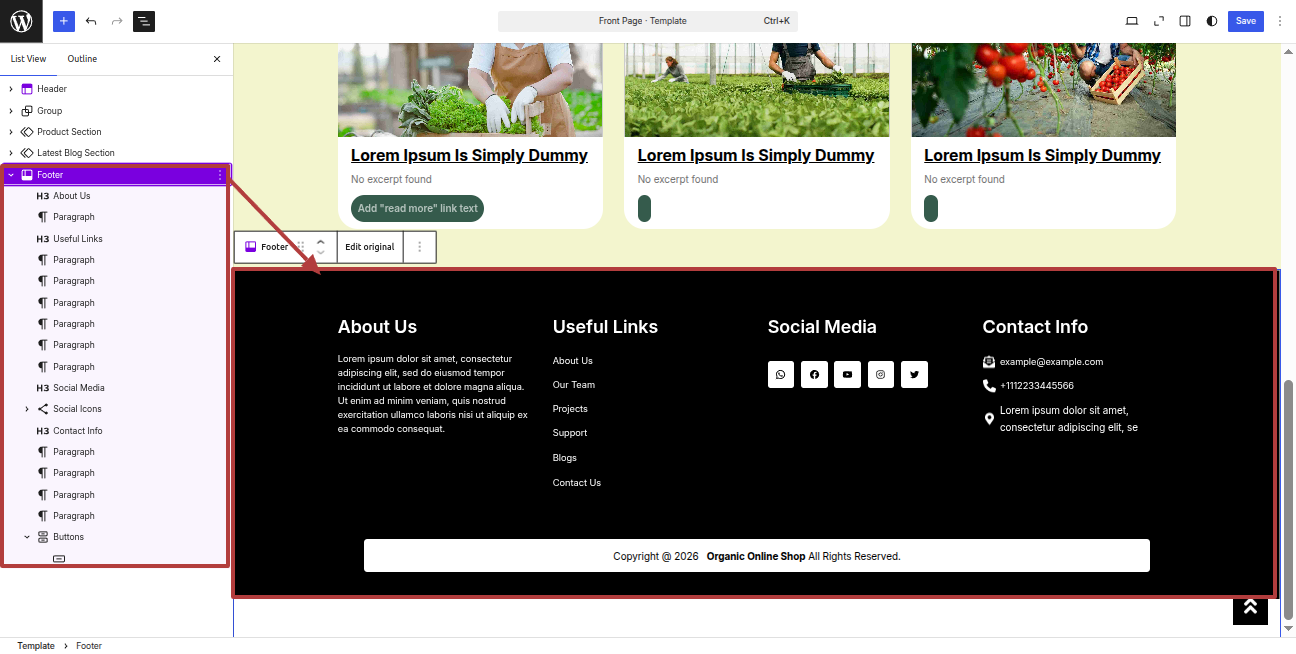
It will be shown in this format in the Footer Bottom.
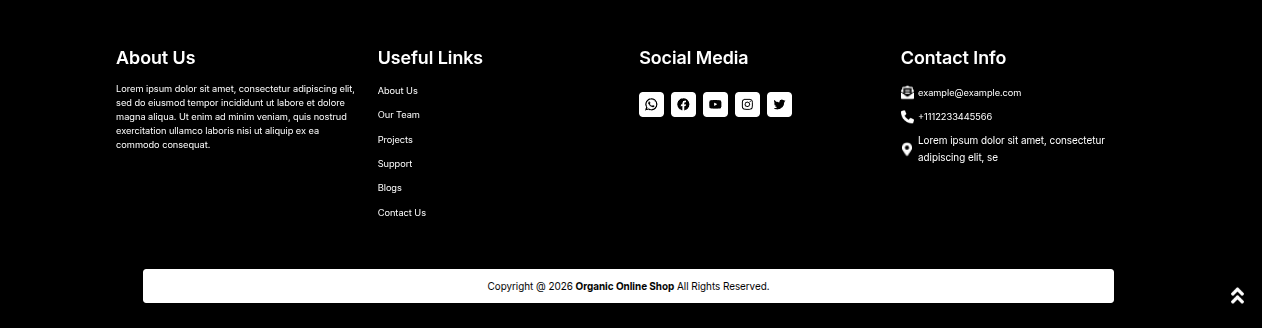
Part Regarding The Styles Varation Development
In reference to the Styles Varation Configuration.
Step 1 Open "Dashbord" to change the theme ===> By selecting "Appearance" ===> Go now to the "Editor".
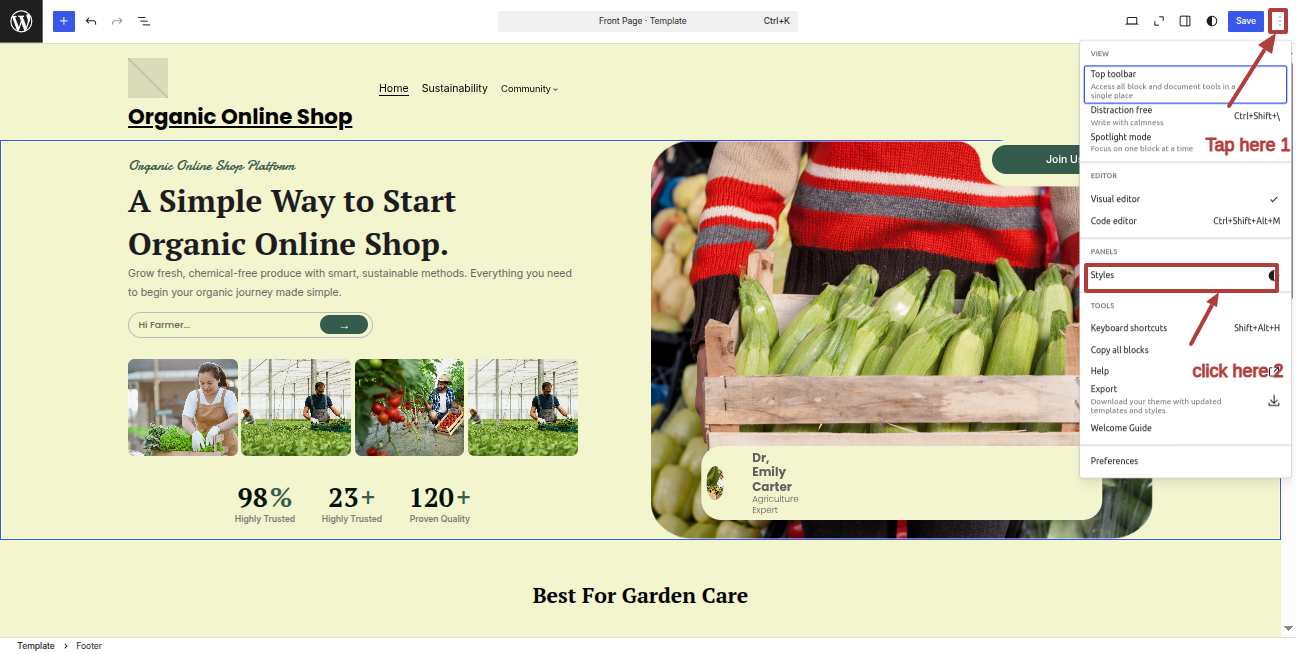
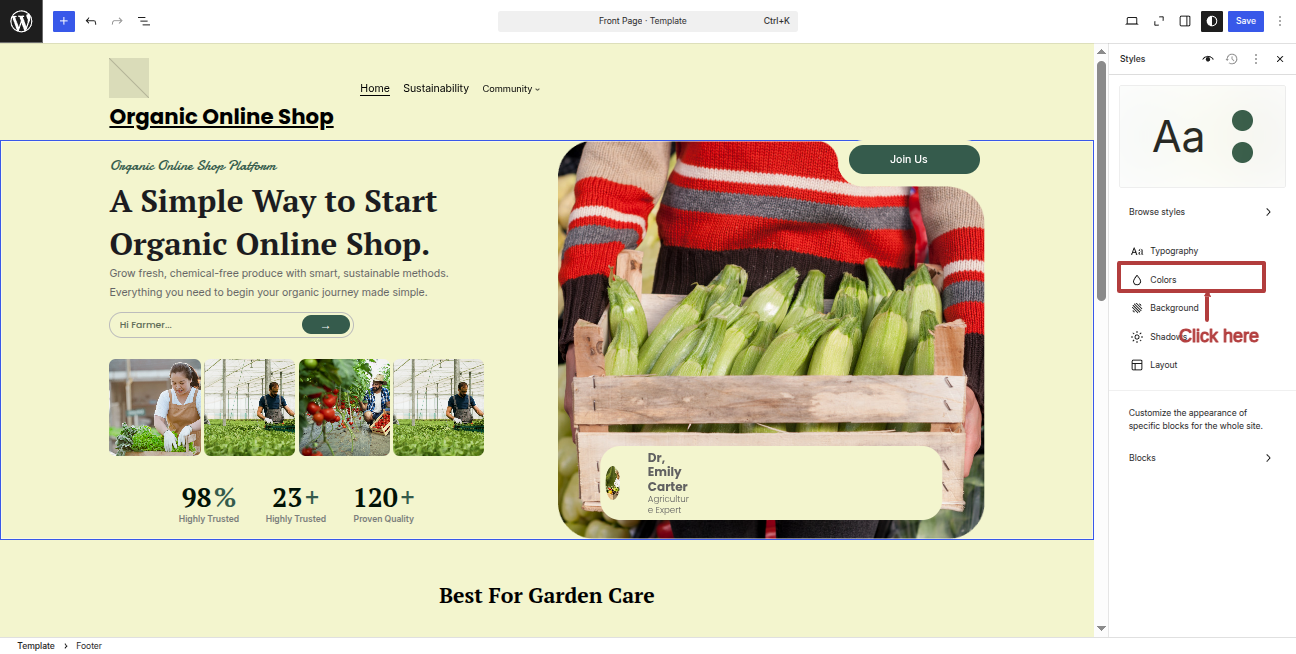
"You can choose the colour palette according to your preferences, and make changes as you like."
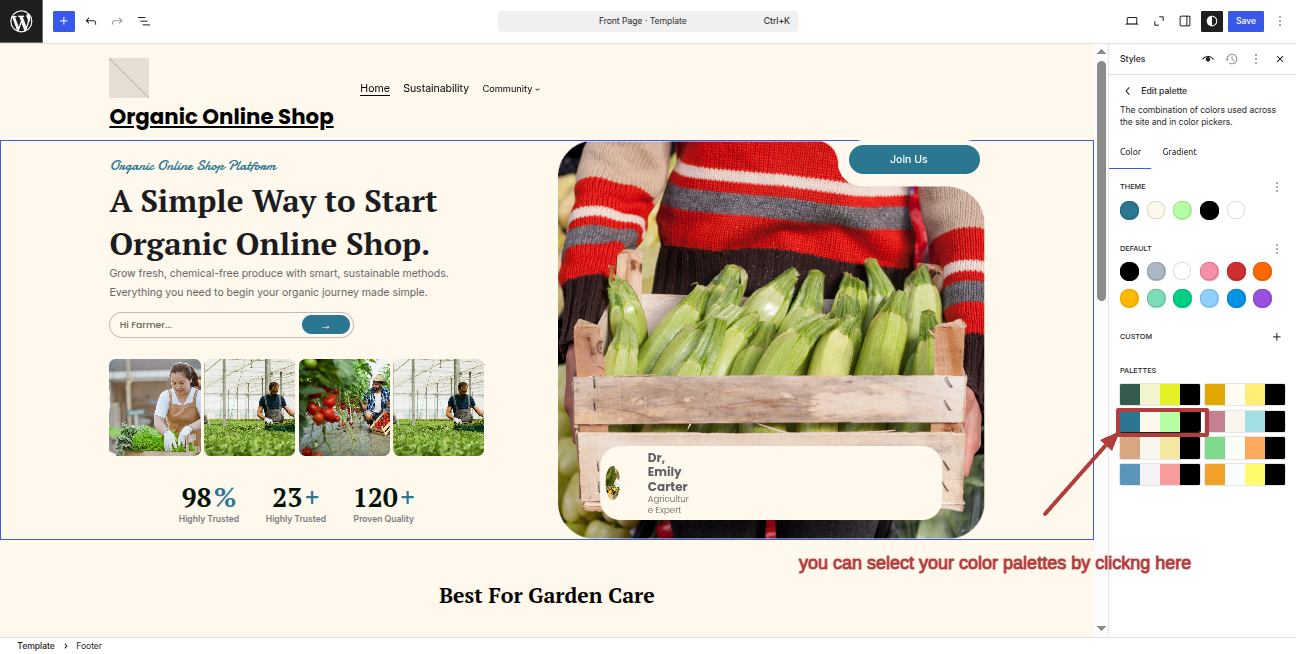
It will be shown in this format in the Styles Varation.