FAQly – Ultimate FAQ
Theme Documentation
- By drakearthur
- support: FAQly – Ultimate FAQ
What is the installation process for the Plugins?
There is not much to the process of installing a Plugins.
This provides you with the free FAQly – Ultimate FAQ in the theme.
Step 1 Open "Dashbord" to change the theme ===> By selecting "Appearance" ===> Go now to the "Install Plugins."
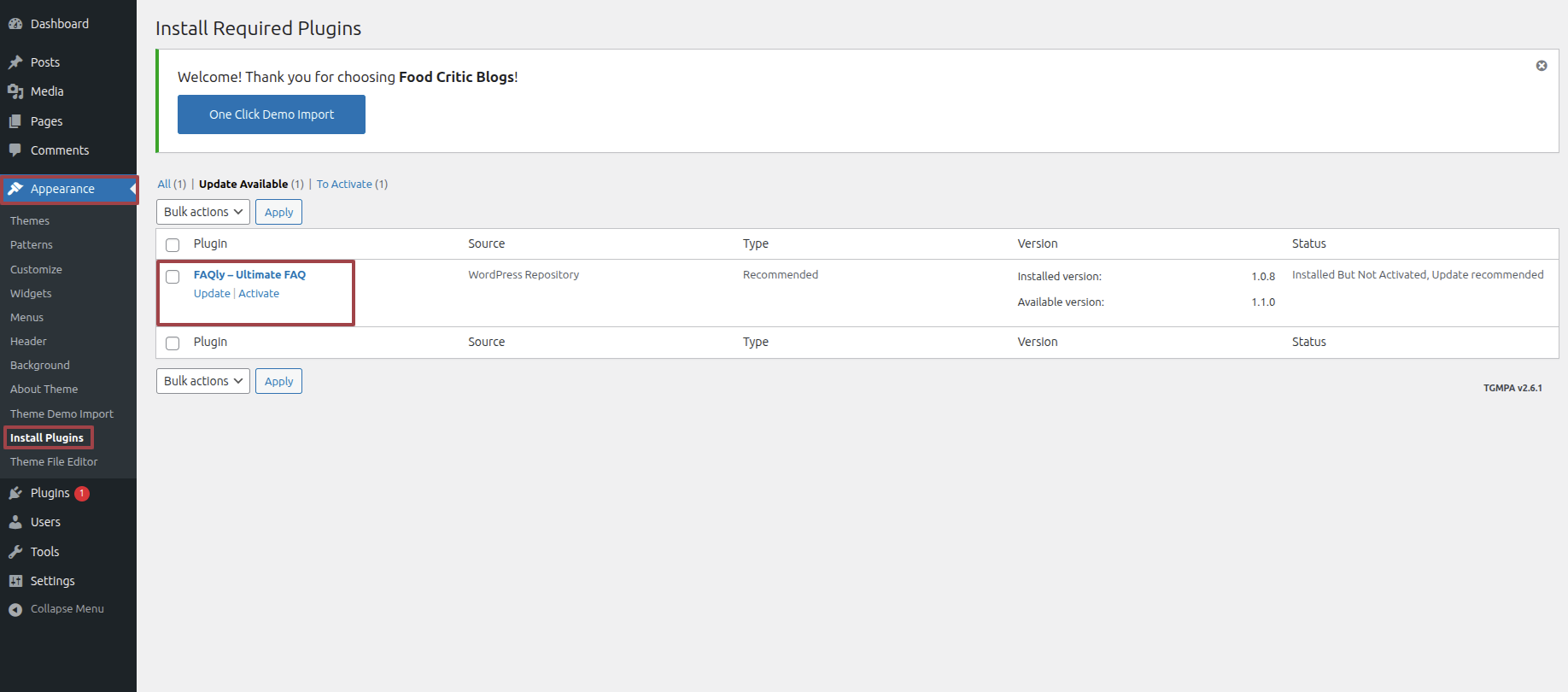
WordPress will now install the preferred Plugins and provide you a success message along with a preview of the Plugins that you may activate.
This will be provided to you in the Drakearthur theme, but for extra features, you should use Pro FAQly – Ultimate FAQ, which comes with extra features.
Along with that, you will also be provided with a license key.
Step 1 Open "Dashbord" to change the theme ===> By selecting "Plugins" ===> Go now to the "Add Plugins."===> Go now to the "Upload Plugins."
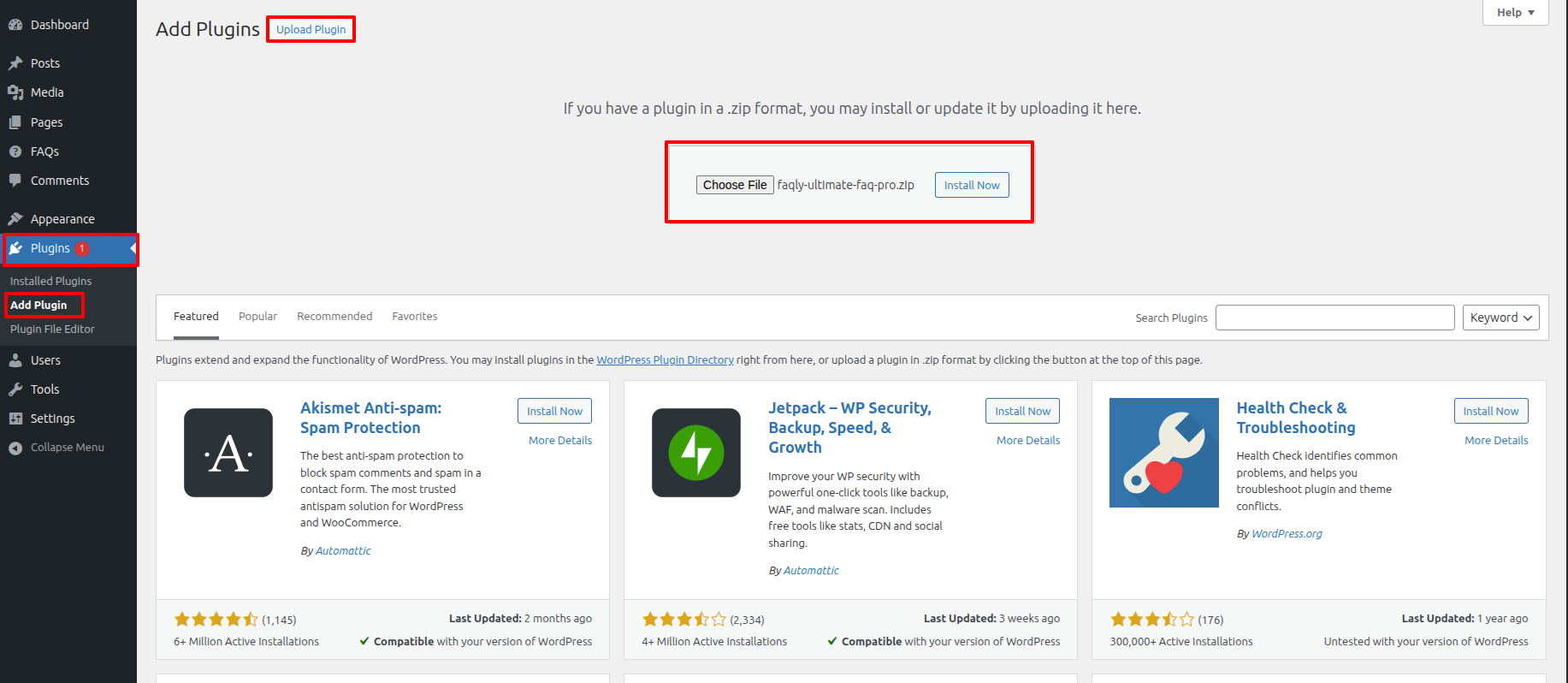
WordPress will now install the preferred theme and provide you a success message along with a preview of the theme that you may activate.
You need to enter the license key that has been provided to you and activate it. Follow the instructions given below.
Step 2 Open "Dashbord" to change the theme ===> By selecting "FAQs" ===> Go now to the "License Key."
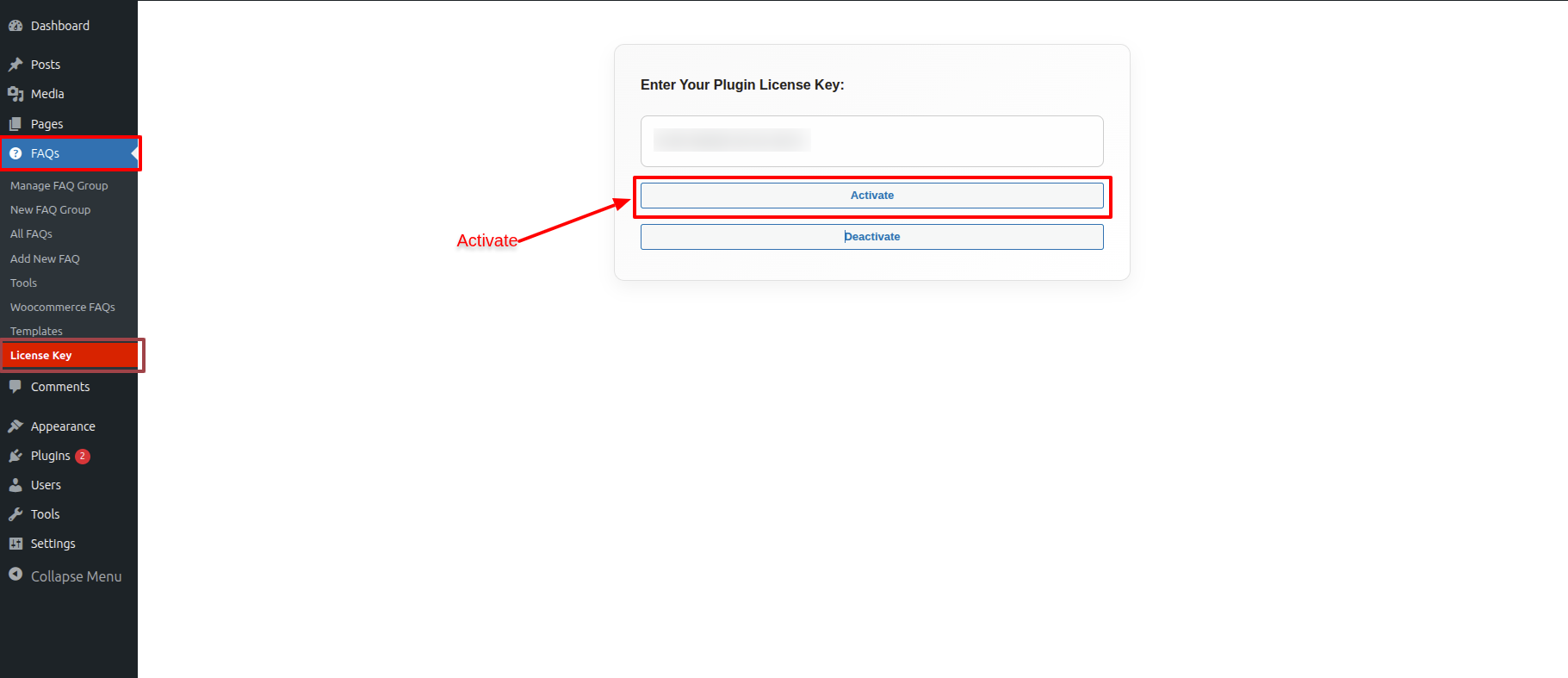
Until you activate the license key, you won't be able to use the FAQs features. Therefore, you need to enter the license key that has been provided to you and activate it.
Guidelines for Setting Up Free Version FAQs
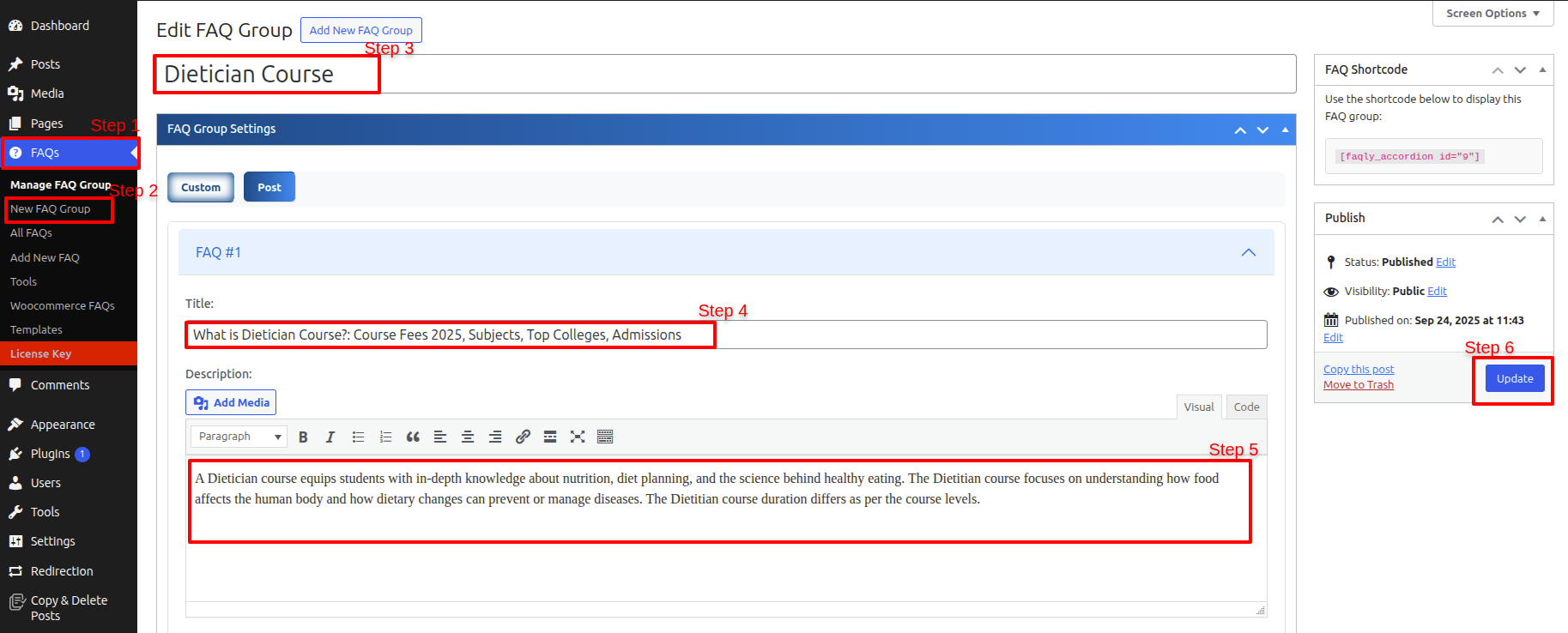
You will see the steps in the image; please follow those steps.
Step 1 Open "Dashbord" to change the theme ===> By selecting "FAQs" ===> Go now to the "New FAQ Group."
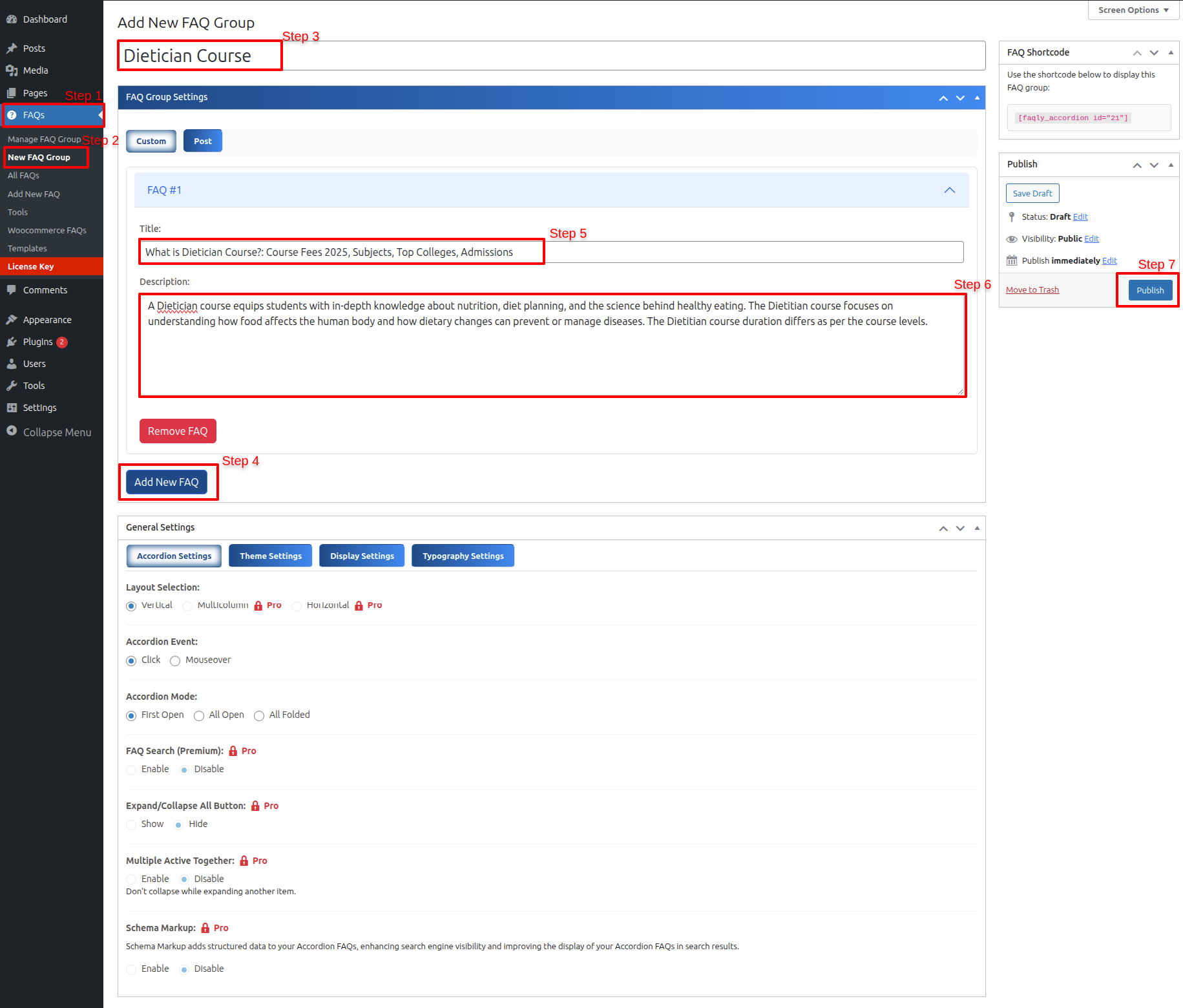
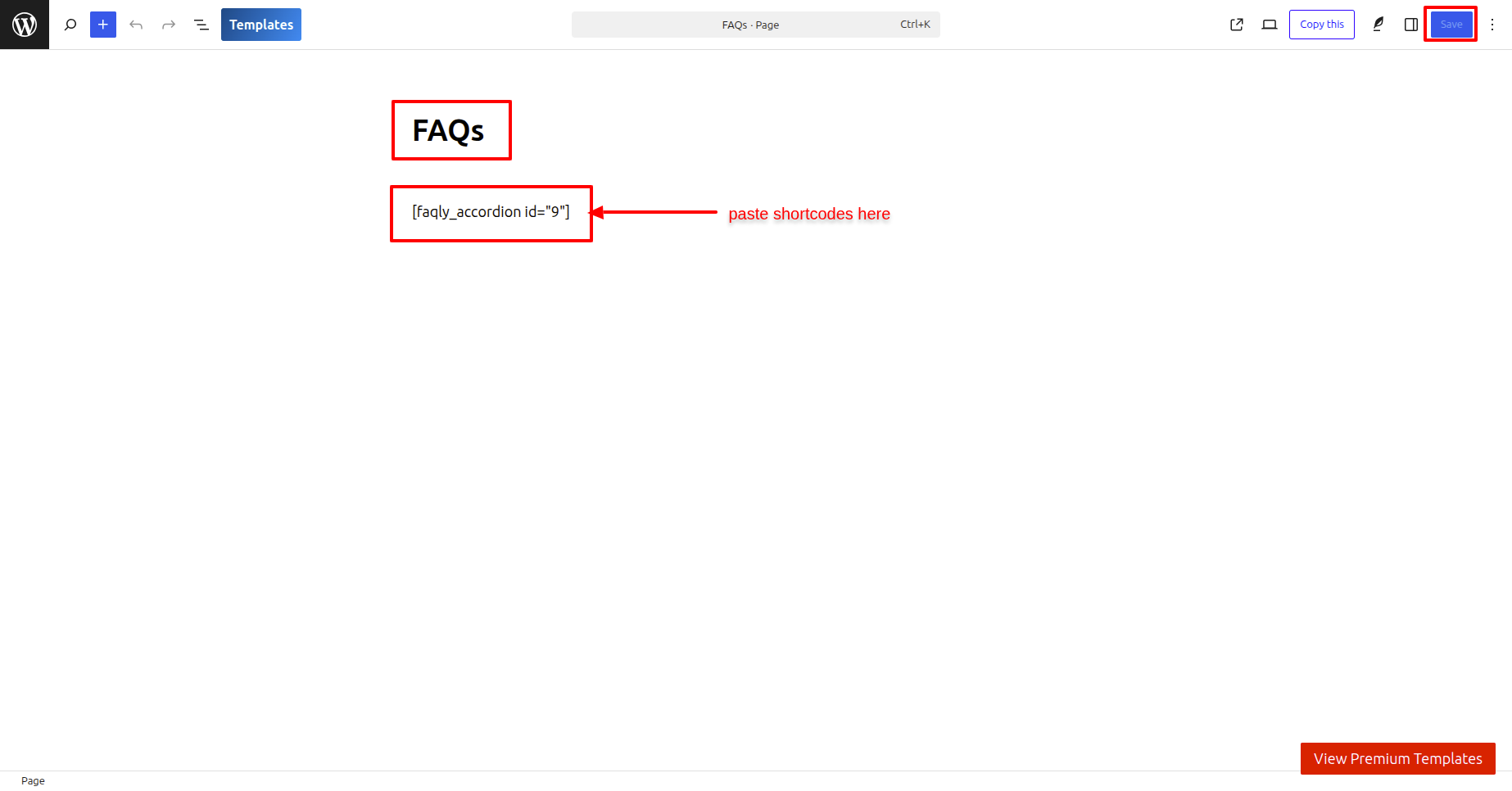
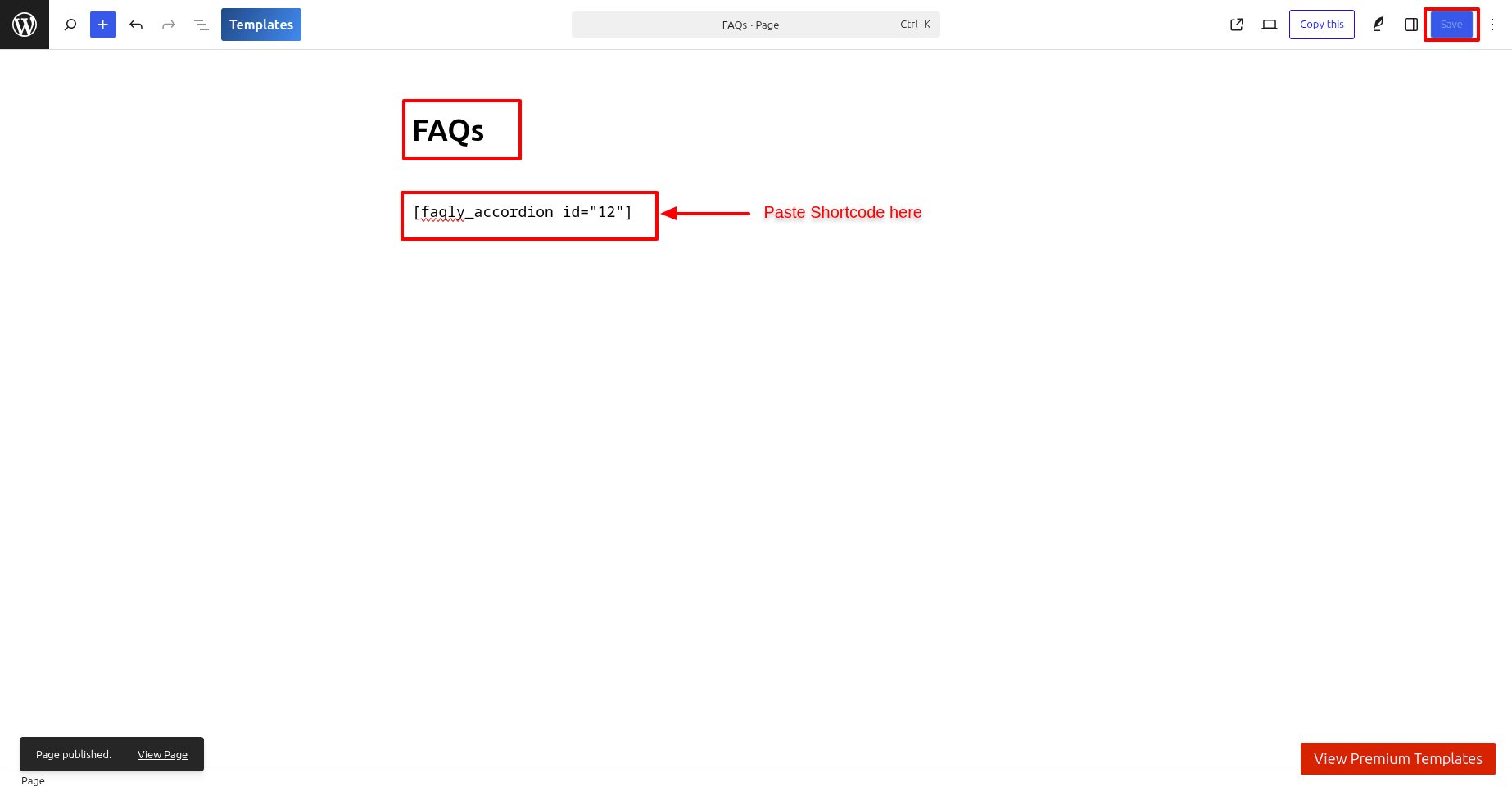
From here you will copy the shortcodes and paste them into the page when you go there.
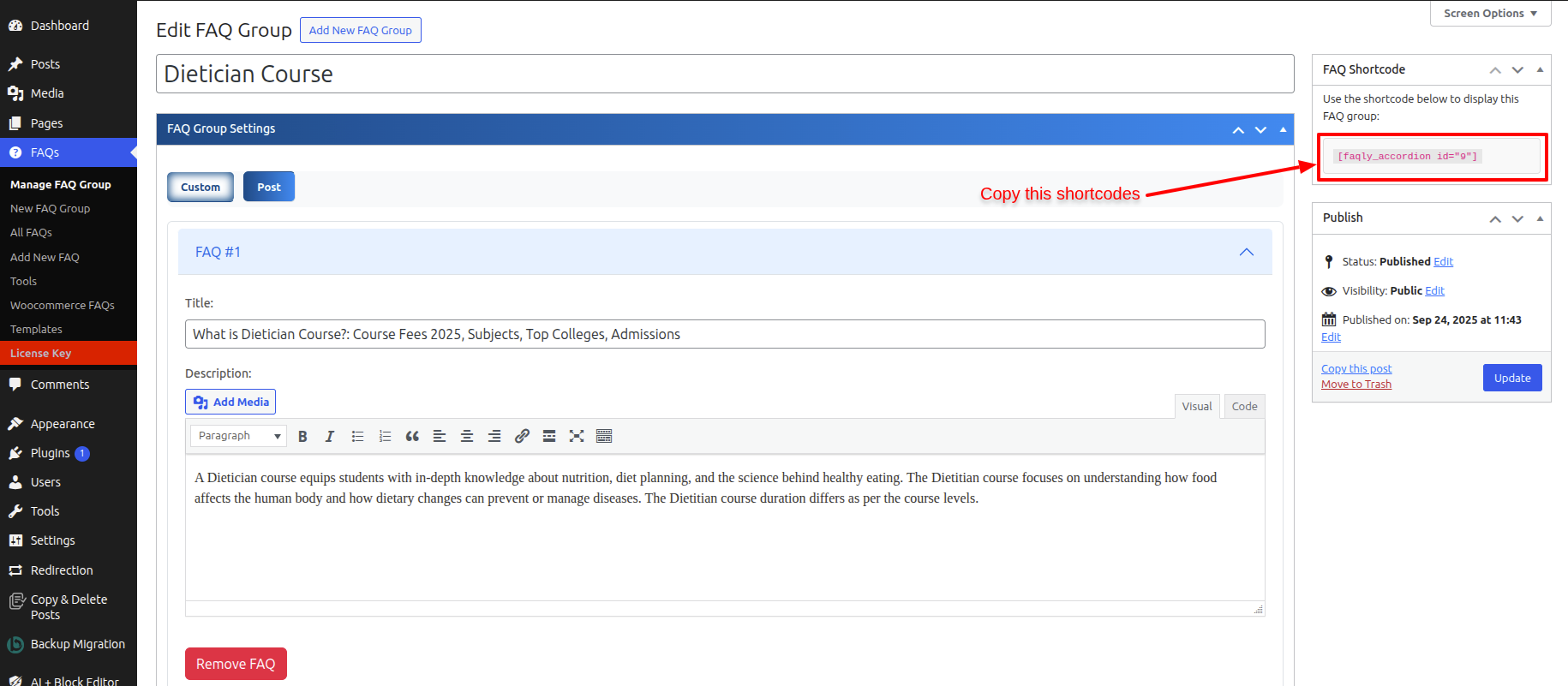
As you may be seeing, you aren't getting to use many features in the free version, so you can buy a pro version FAQ.
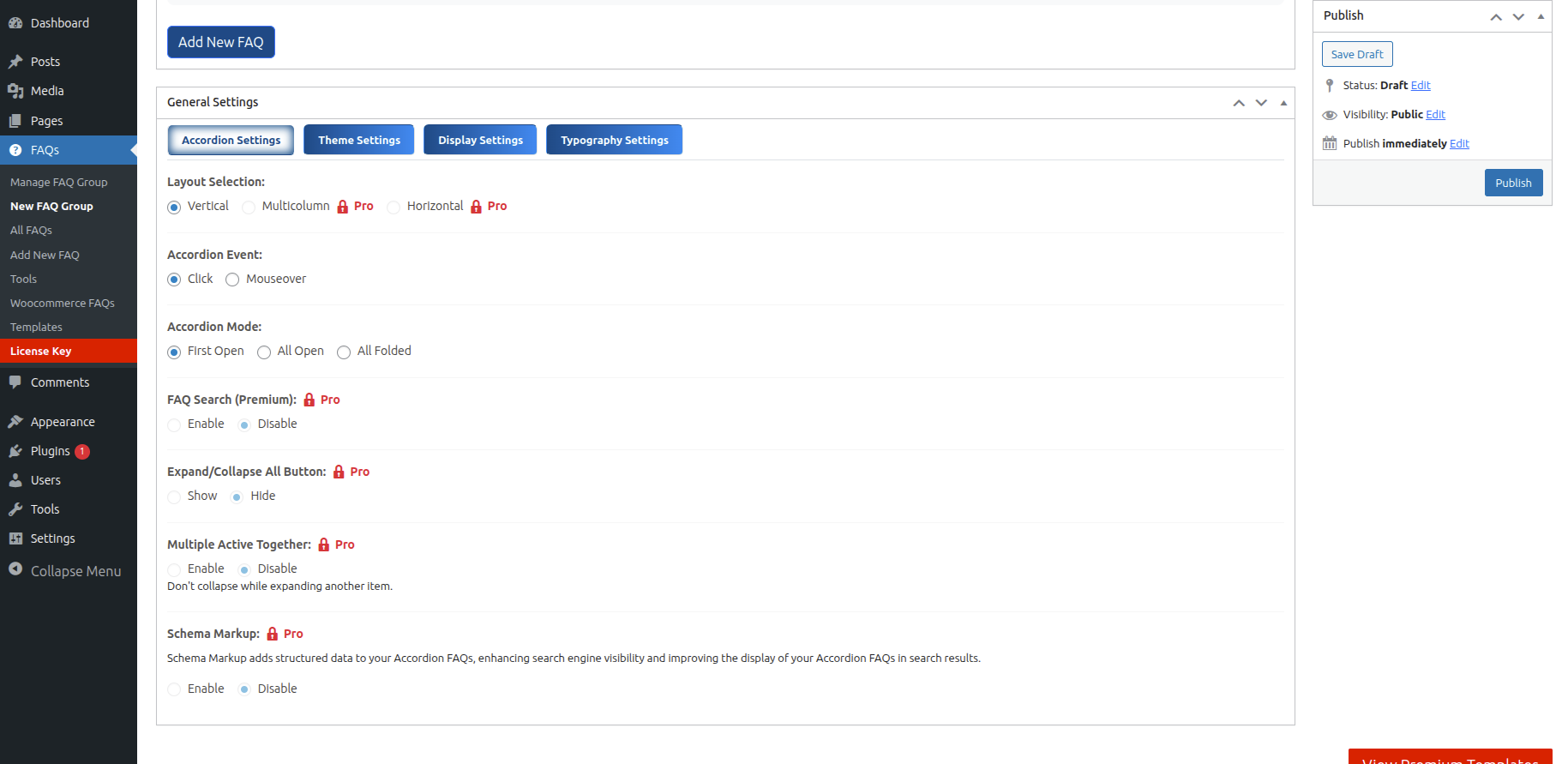
You won't even find some import or export features; in the pro version all these features will be provided so it’s easy to work with and you can design according to your needs.
Step 2 Open "Dashbord" to change the theme ===> By selecting "Page" ===> Go now to the "Add New Page."
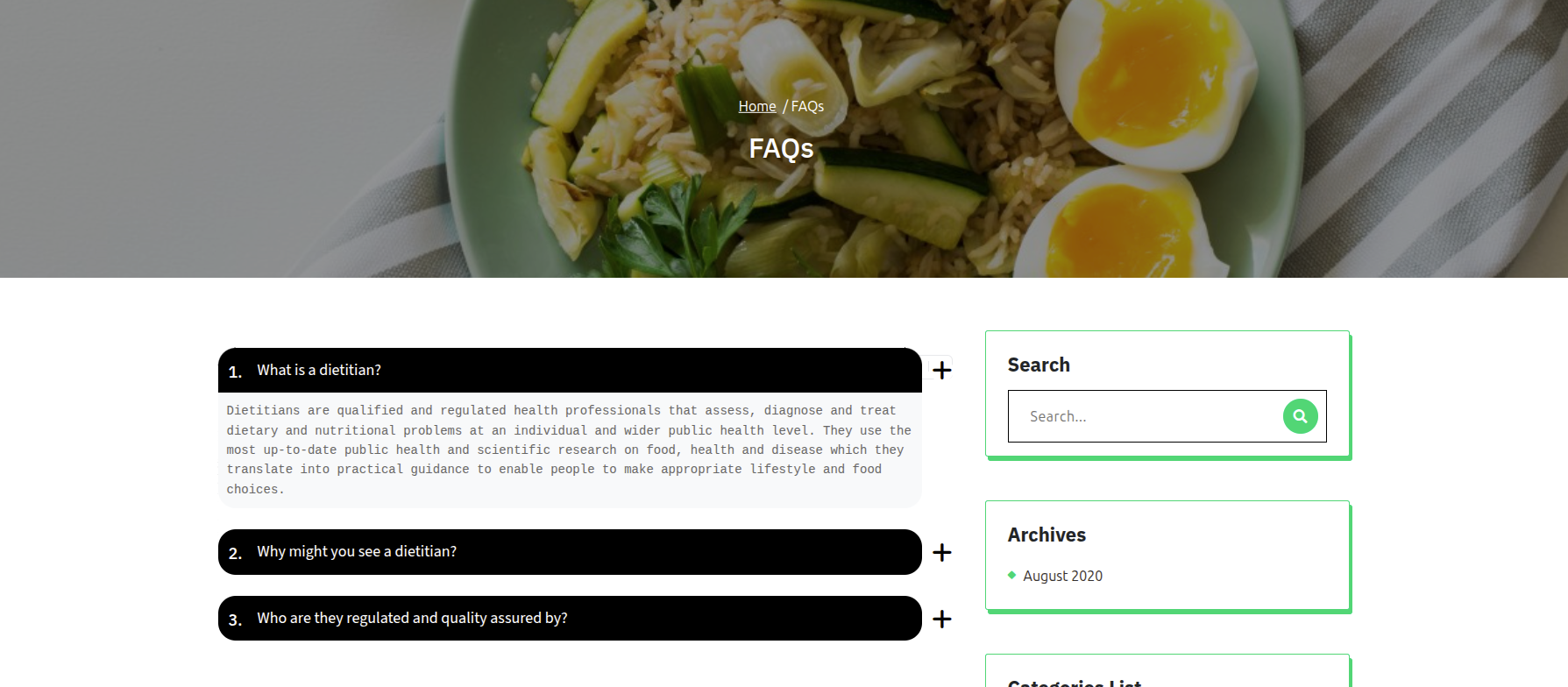
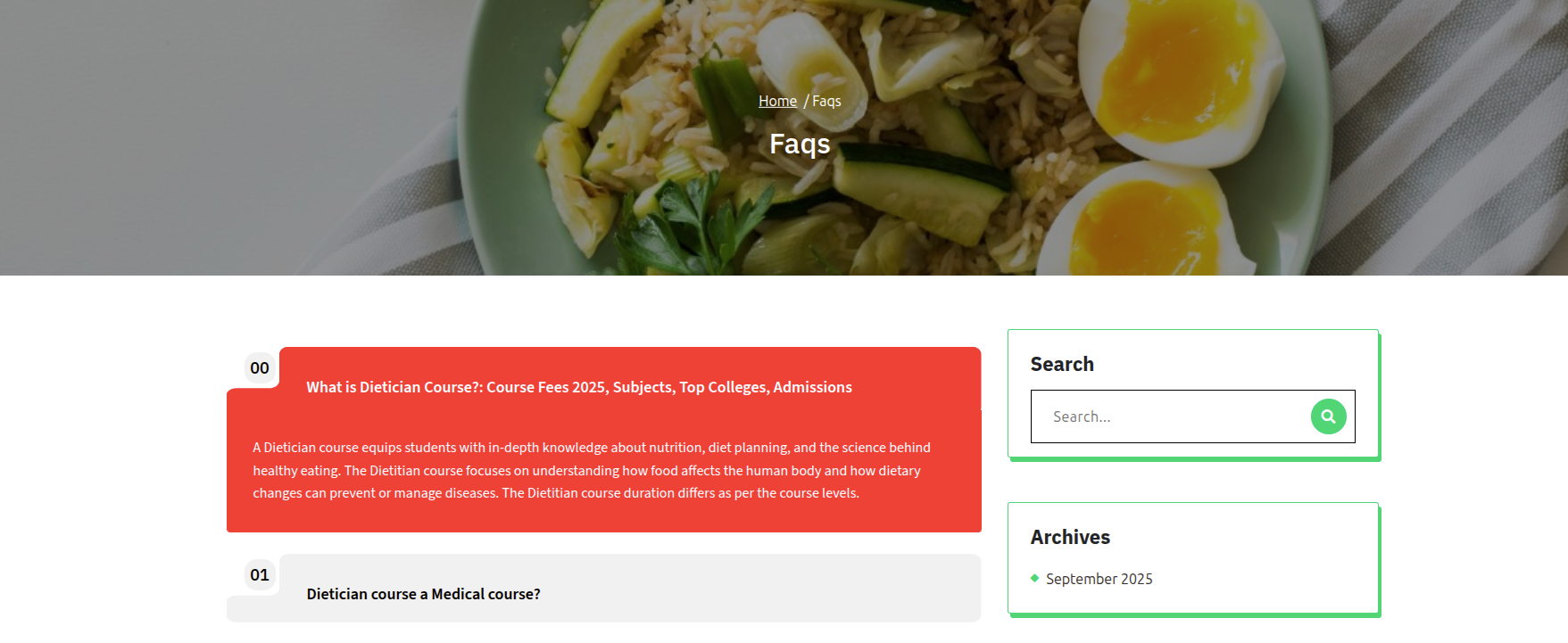
It will be shown in this format in the FAQs Section.
Guidelines for Setting Up Pro Version FAQs
You will see the steps in the image; please follow those steps.
Step 1 Open "Dashbord" to change the theme ===> By selecting "FAQs" ===> Go now to the "New FAQ Group."
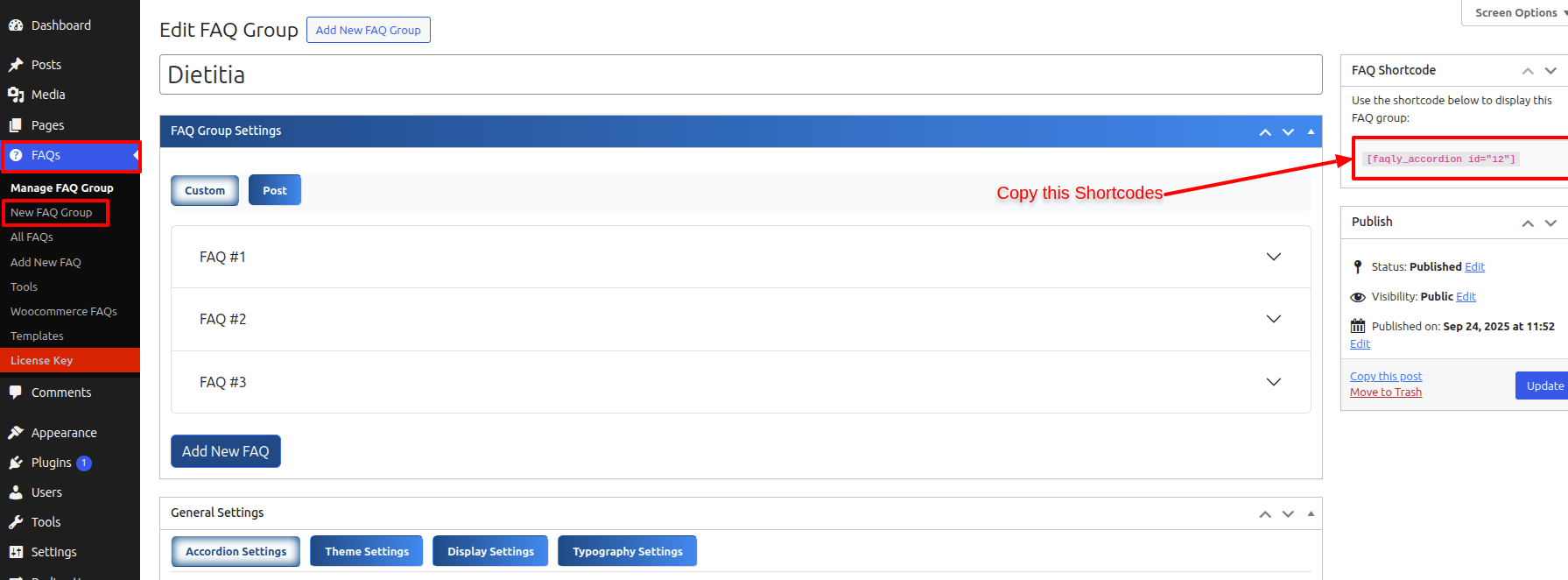
From here you will copy the shortcodes and paste them into the page when you go there.
As you can see, all the features are now available for use.
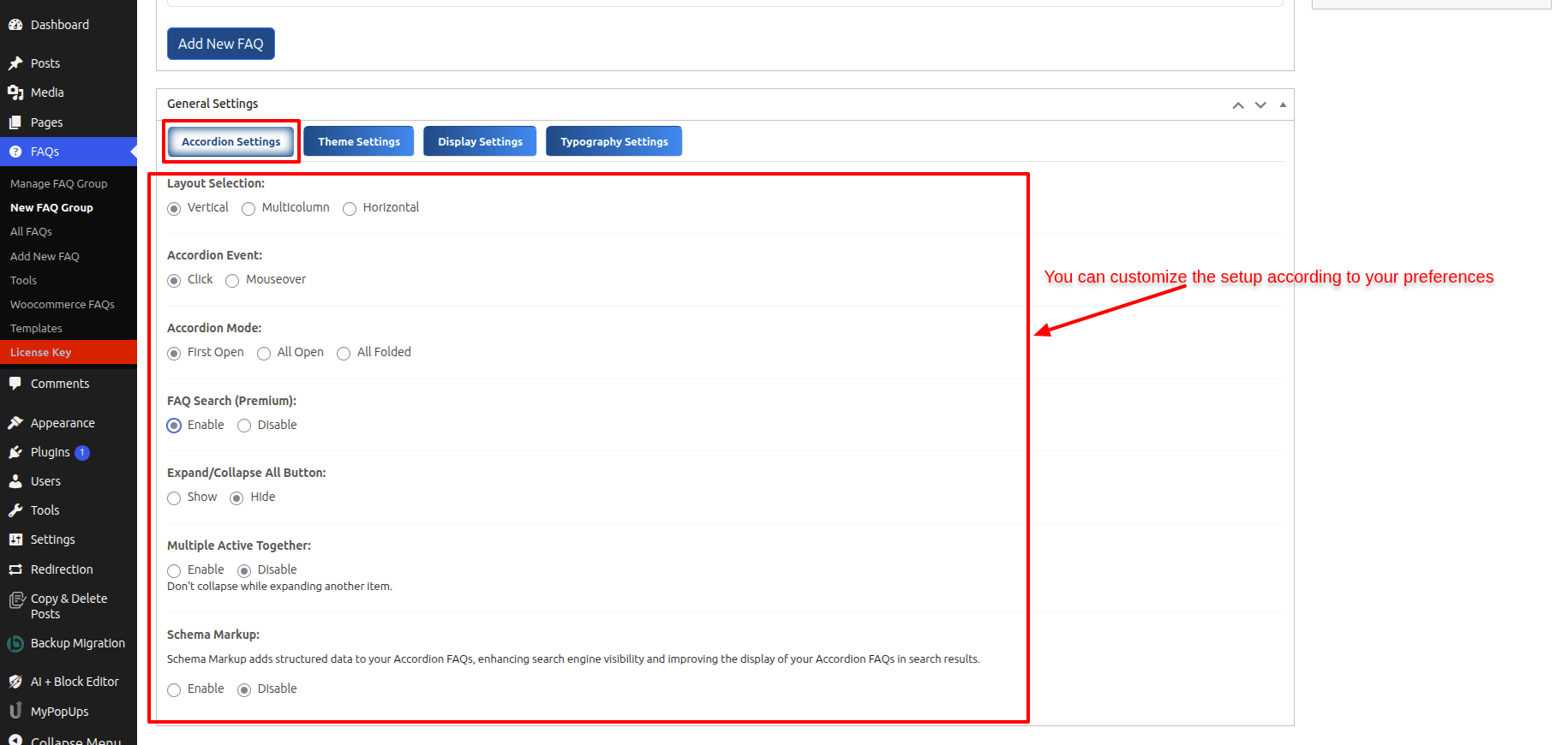
You can modify the layout by using different features under the Accordion Settings. To do this, go to the Accordion Settings tab
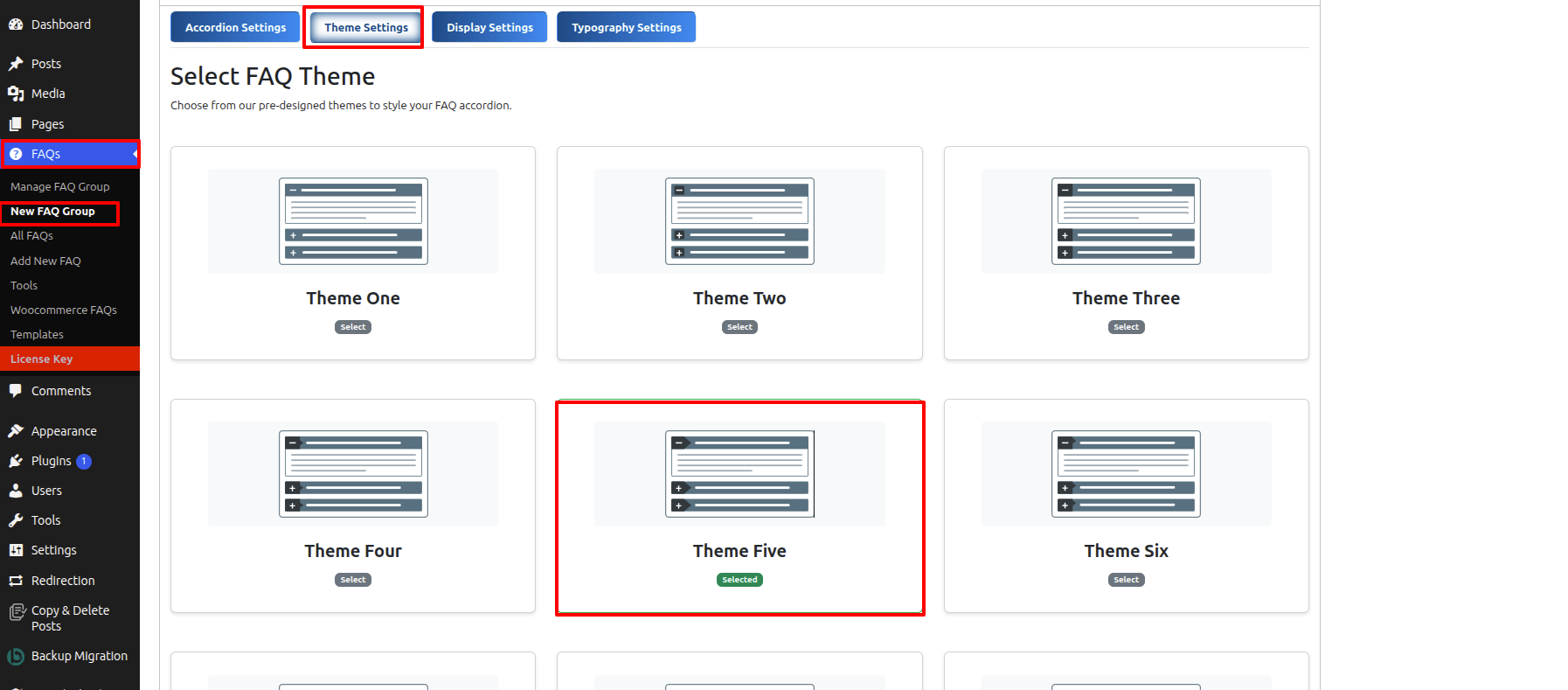
You can modify the layout by using different features under the Theme Settings. To do this, go to the Theme Settings tab
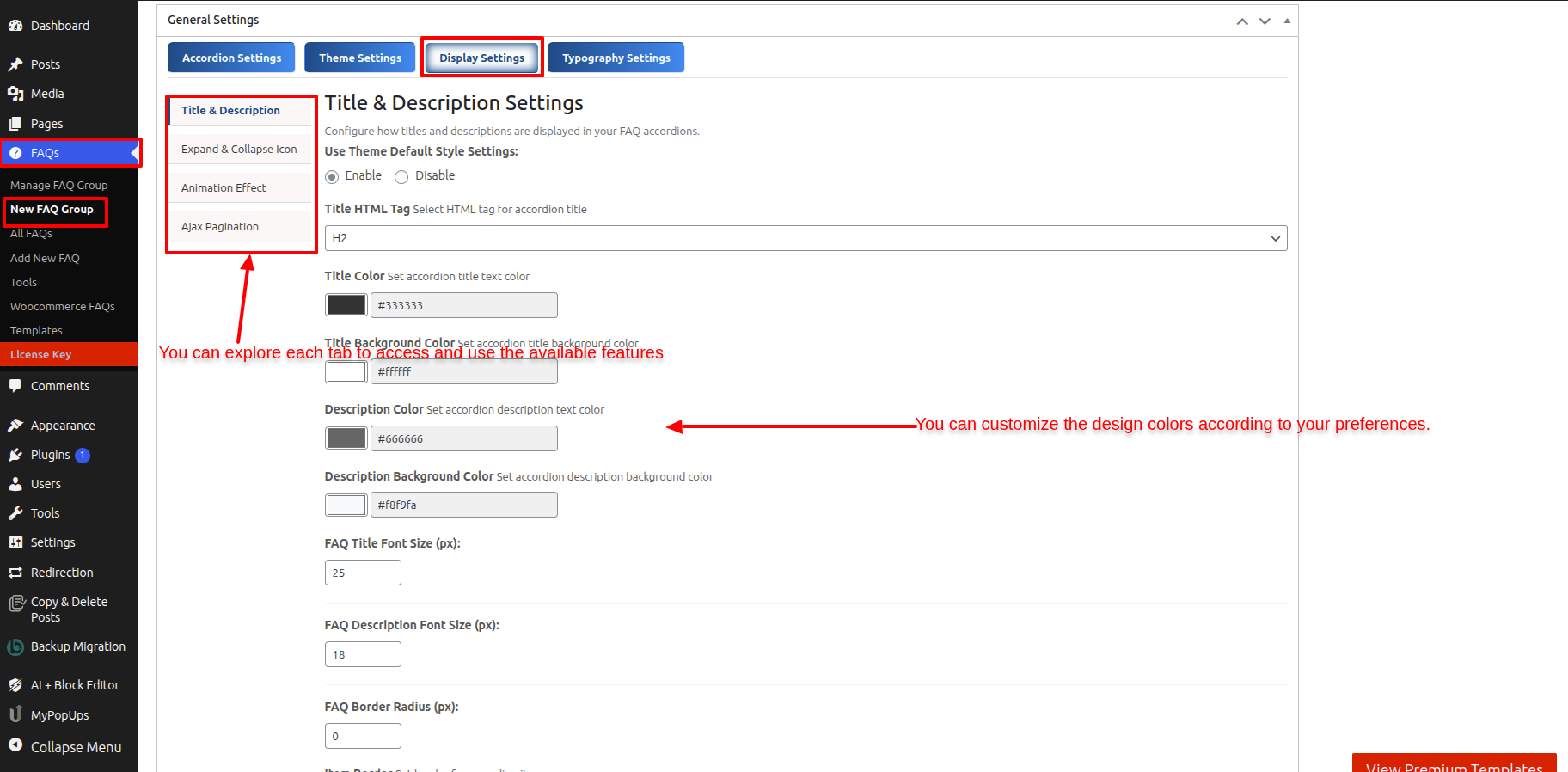
You can modify the layout by using different features under the Displays Settings. To do this, go to the Displays Settings tab
You can modify the layout by using different features under the Typography Settings. To do this, go to the Typography Settings tab
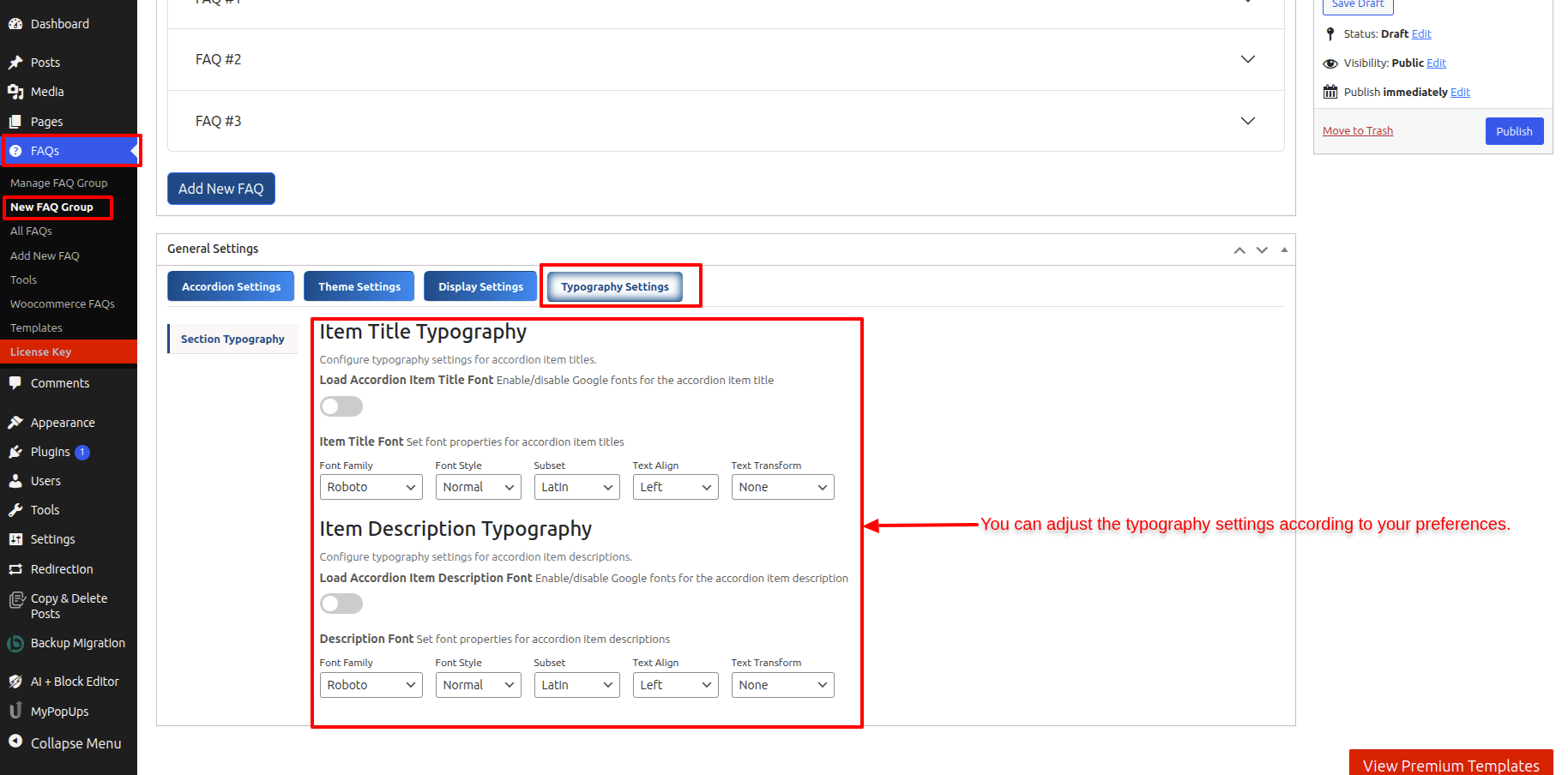
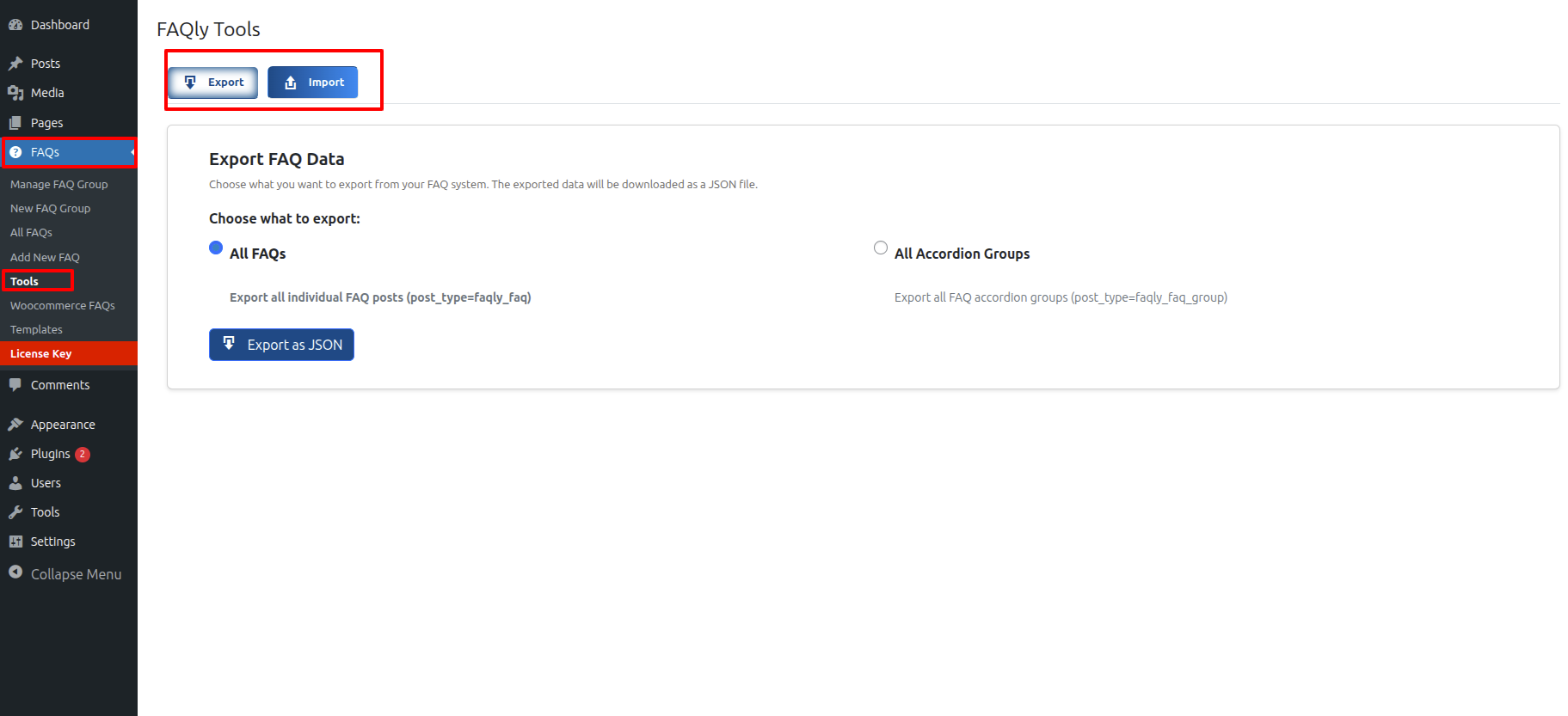
Open "Dashbord" to change the theme ===> By selecting "FAQs" ===> Go now to the "Tools."
Step 2 Open "Dashbord" to change the theme ===> By selecting "Page" ===> Go now to the "Add New Page."
It will be shown in this format in the FAQs Section.